How to Make Bills & Authorize them
Overview
This guide provides a quick step-by-step process for Creating and Authorizing Purchase Bills..
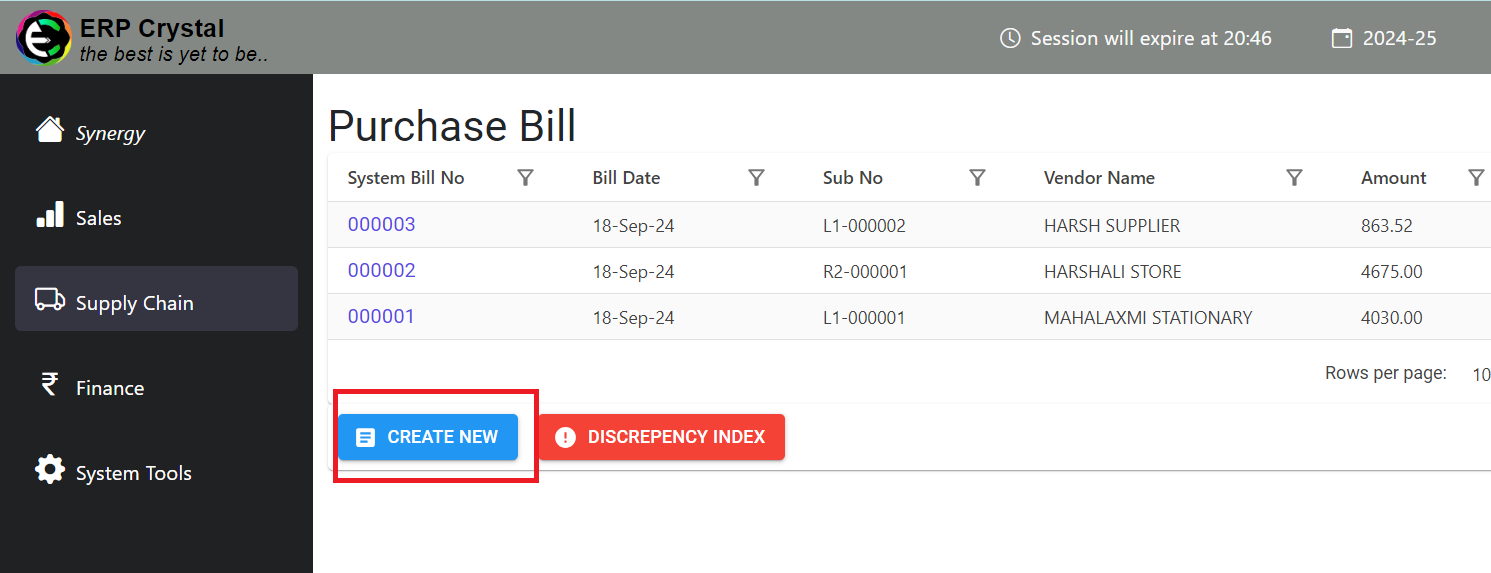
Step 1: Navigate to the Supply Chain
Click on Purcahse Bill–> Create New
Step 2: Fill in the Details
Make sure to check the following:
- The Bill Date is later than the last recorded bill date.
- For Direct Purchase (GST type), ensure the vendor’s GST state code matches the Supply From state code.
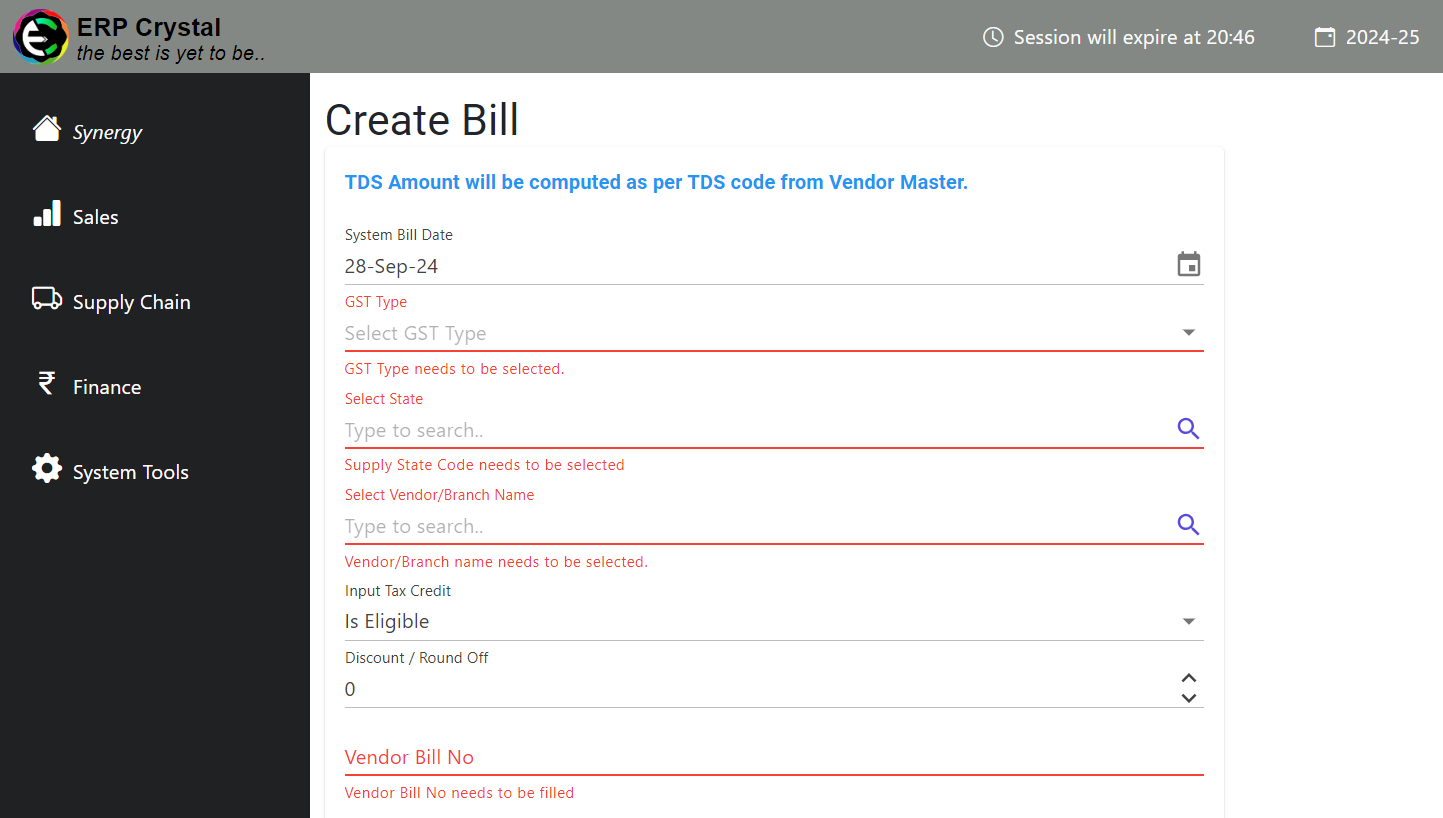
Step 3: Save Your Bill
- Click on Save to generate the Bill
- Upon saving, you will be redirected to the Create Bill Line Level page where you can input detailed line-level entries.
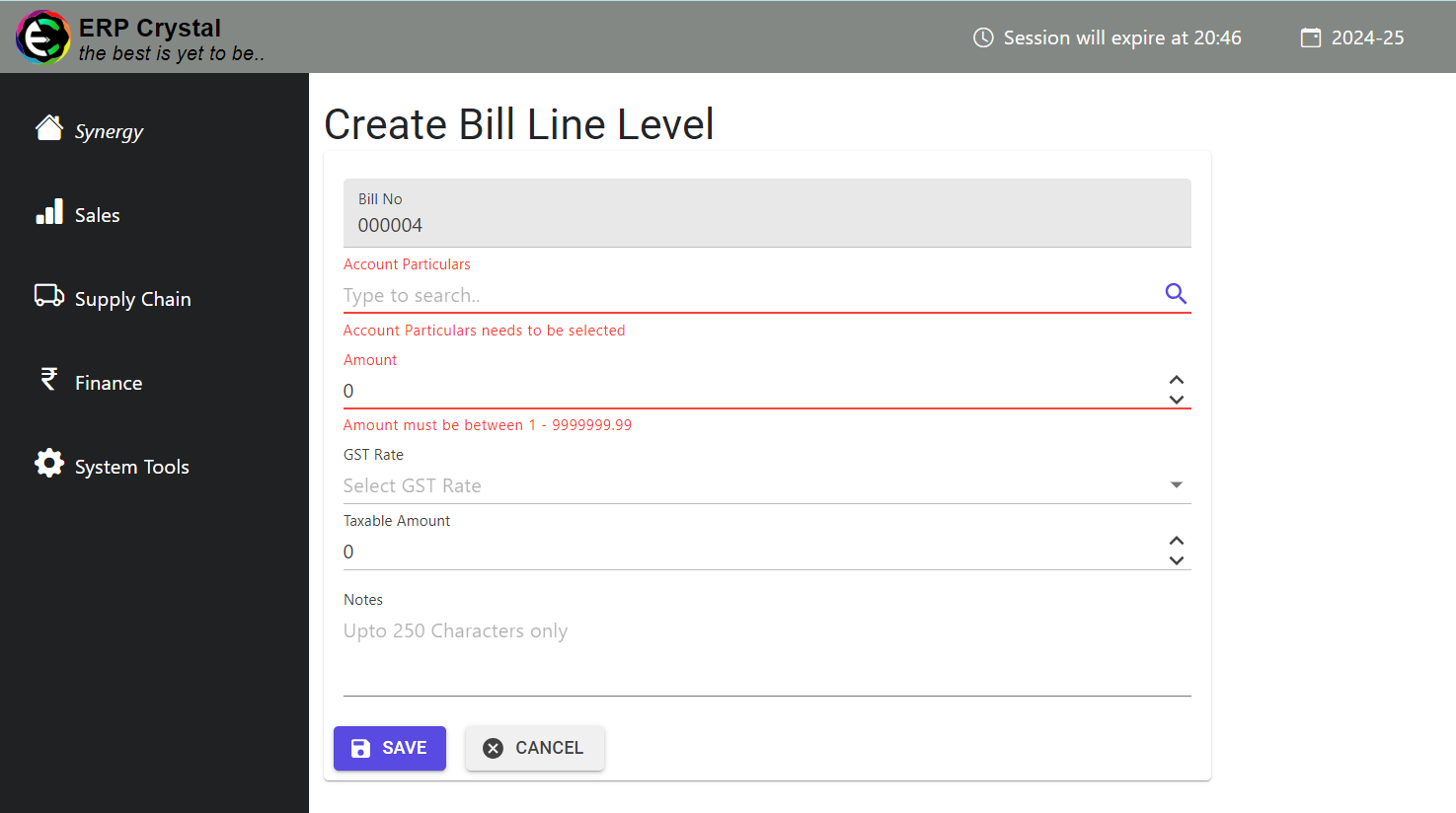
Step 3: Save Line-Level Details
- Click on Save to generate the Line Level Bill
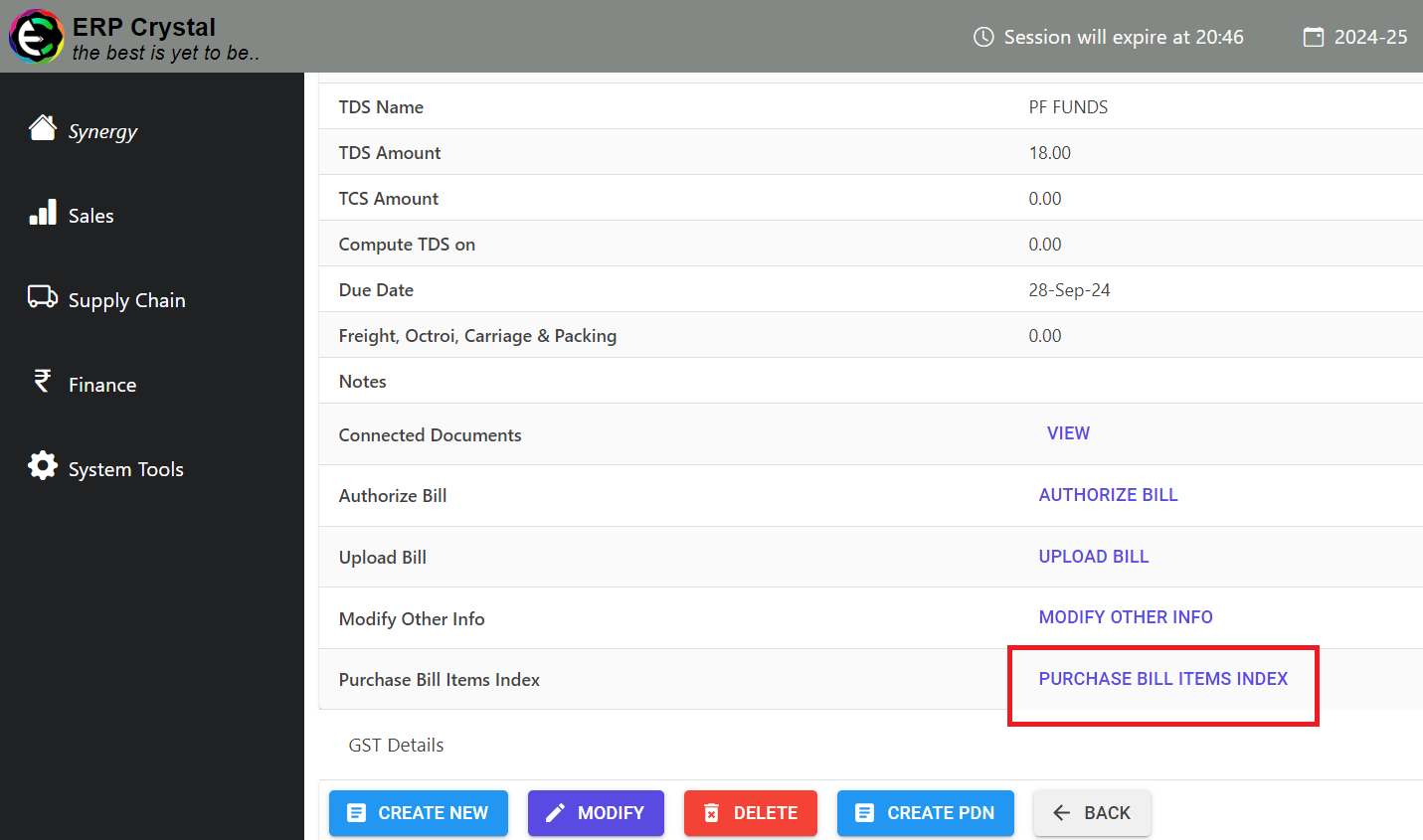
- You will be redirected to the Bill details page where you can:
- View and manage additional invoice information.
- Click on Purchase Bill Item Index to access detailed line-level information.
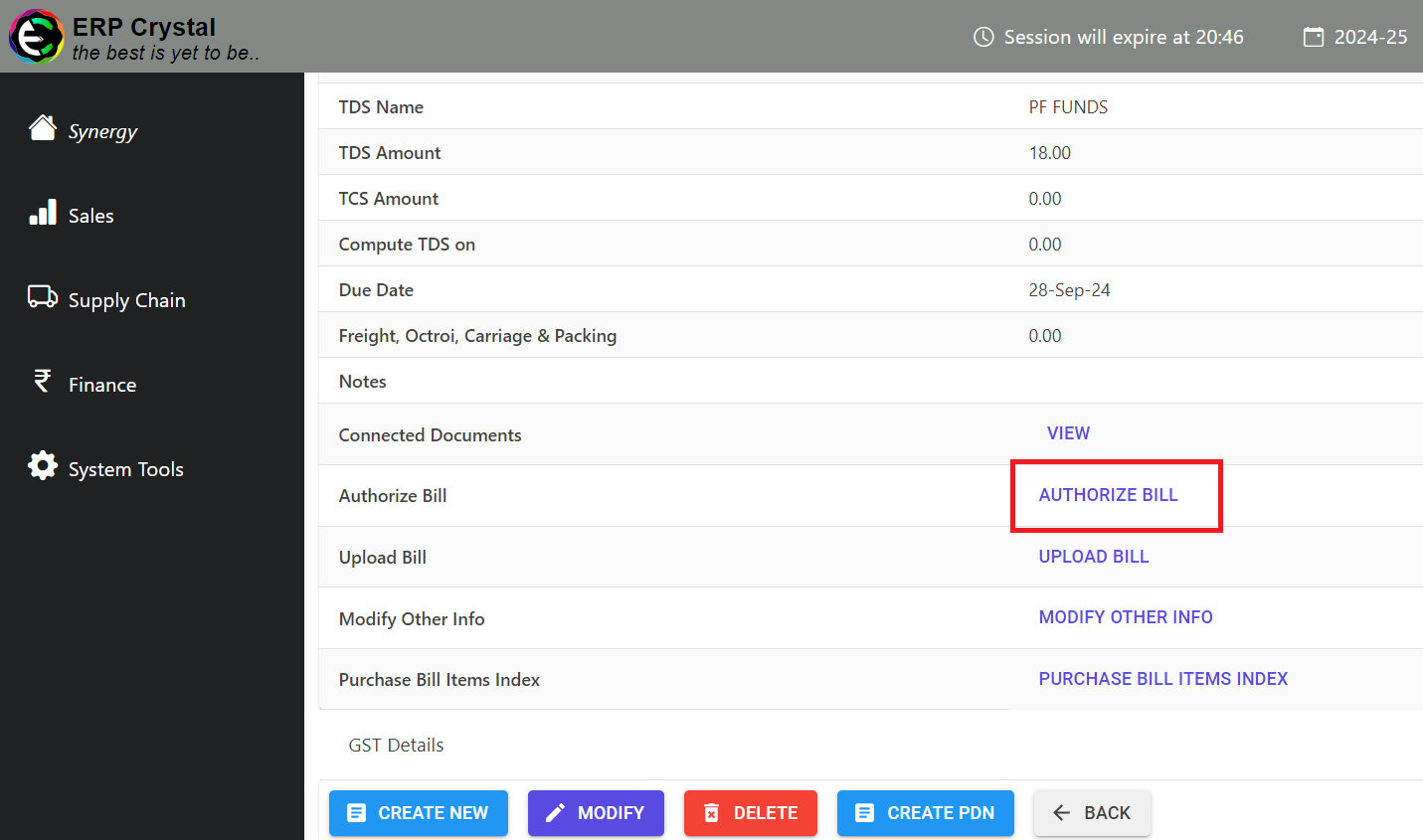
Step 4: Bill Authorization
Click on Authorize Bill, Ensure there are no discrepancies before authorizing the bill.
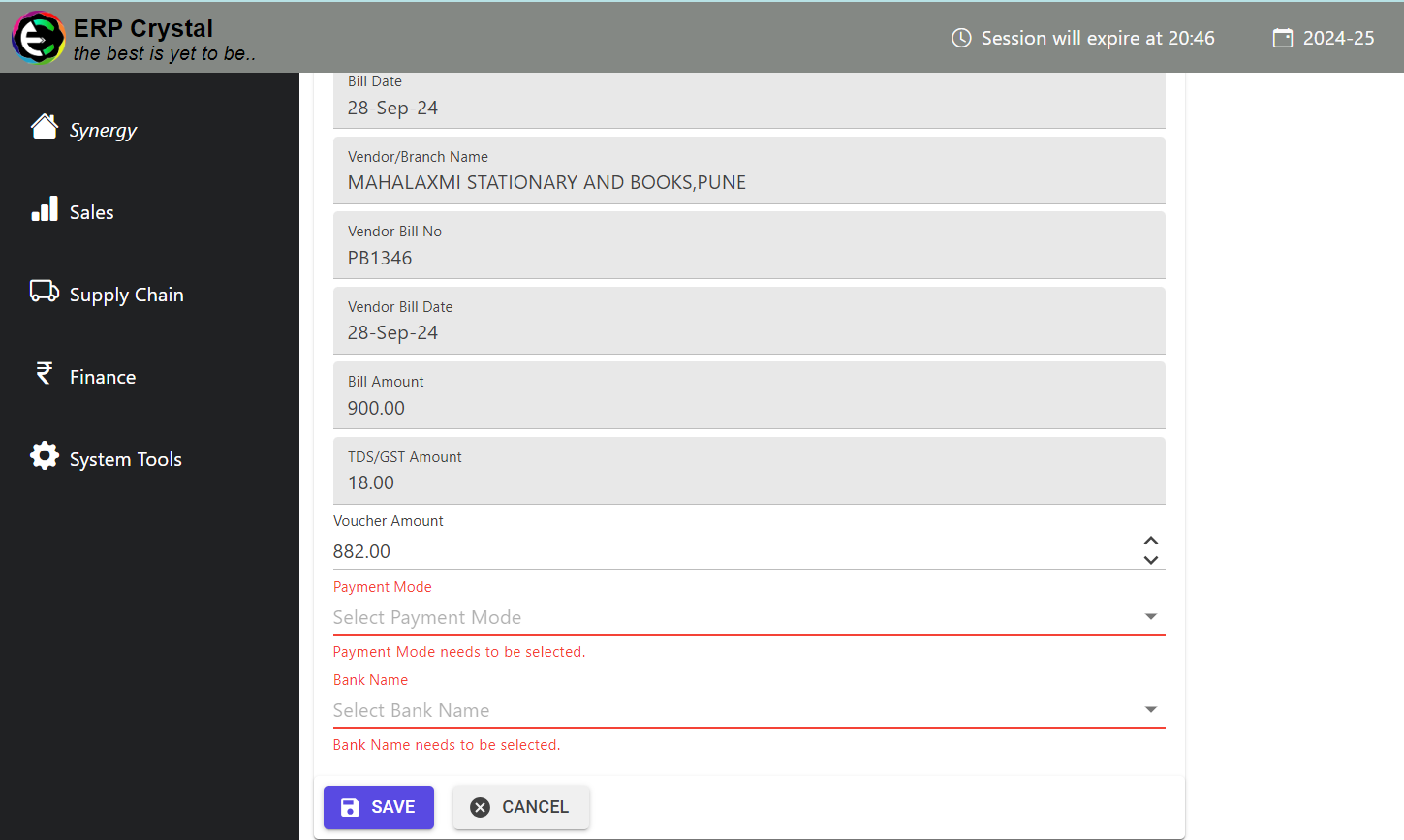
Step 5: Create Voucher
- After Authorization it will redirect to Voucher Create Page, key in the details and Click Save to create Voucher
- Verify that there is sufficient balance in the selected bank account before finalizing the voucher.