Opening Balance Master
Opening Balance (Bank & Cash) - User Guide
ℹ️
⚡ Quick Start: Setting Your Baseline
- Access: Navigate to System Tools > Opg Bal Index.
- Setup: Select the Date (typically the 1st day of the financial year).
- Entry: Select your Cash or Bank ledger and enter the Balance Amount as per your physical cash count or bank statement.
- Debit/Credit: Choose Debit (Dr) for assets (Bank/Cash) and Credit (Cr) if an account (like an overdraft) is in the negative.
🗺️ Migration Flow
graph LR
    Manual[Physical Statement] --> Opg[Opening Balance Entry]
    Opg --> TB[Trial Balance]
    TB --> Reco[Bank Reconciliation]

    style Opg fill:#f9f,stroke:#333,stroke-width:2px
1. Introduction 📝
The Opening Balance Master is used exclusively during the initial migration to ERP Crystal or at the start of a society’s digital record-keeping. It tells the system: “On this specific date, this is how much money we had in these accounts.”
2. Usage in Transactions 🔄
- 🏦 Bank Reconciliation: The opening balance serves as the starting point for all subsequent bank statement matching.
- 🏛️ Balance Sheet: Provides the initial asset values for the “Cash & Bank” section.
- 📊 Cash Book: Determines the starting balance before the first daily entry is recorded.
3. Related Reports 📊
- 📋 Opening Balance Register: A list of all baseline values entered for banks and cash.
- 📉 Trial Balance (Opening): A specialized view showing only the migrated values before any daily transactions occurred.
4. Key Fields Highlights 🔍
- A/c Name: Must be a “Level 1” ledger from the Account Master.
- Dr/Cr Flag: Crucial for accounting accuracy. Banks and Cash are almost always Dr.
- Closing Date: The system uses this to set the cutoff for all future financial calculations.
5. Interface Walkthrough 🔄
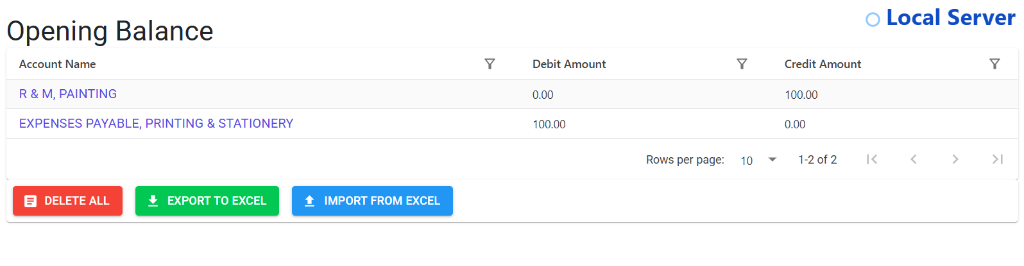
Browse Opening Balances
The Index Page shows the comprehensive list of starting balances entered for various accounts.
- Account Snapshot: View current Debit and Credit opening balances at a glance.
- Bulk Operations: Use the Import from Excel button to upload multiple balances at once or Export to Excel for auditing.
- Cleanup: Use Delete All to clear and reset the opening baseline (use with caution).
View Account Details
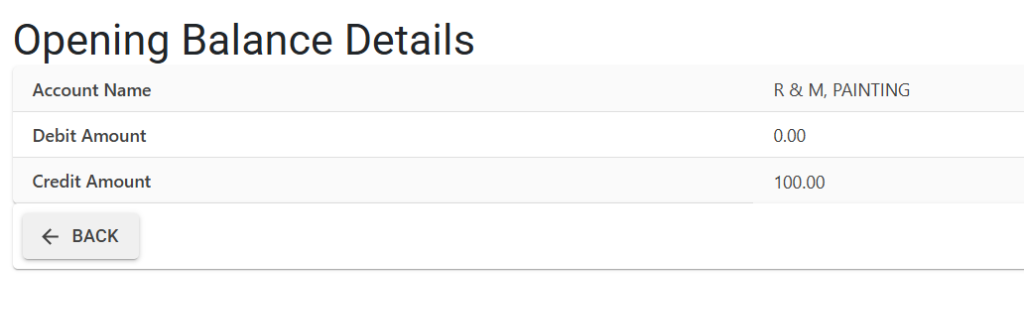
Checking individual entries opens the Details View for precise verification.
- Specific Balance: View the exact breakdown of Debit or Credit amounts for a single ledger.
- Navigation: Seamlessly return to the main index using the Back button.
6. Validations and Error Handling ⚠️
| Validation Type | What is checked? | Error Message / Action |
|---|---|---|
| Transaction Conflict | If an account already has daily vouchers before an opening balance is set. | System may display a warning about “Historical Sequence”. |
| Duplicate Entry | If the same account is given multiple opening balances for the same date. | Prevents redundant entries to protect Trial Balance. |
7. Best Practices / Tips 💡
ℹ️
- Match the Bank Reconciliation: Ensure your opening bank balance matches the “Adjusted Balance” on your manual reconciliation sheet (Accounting balance, not just the passbook balance).
- Use the Last Day of Previous Year: Usually, opening balances are entered for April 1st, representing the final closing position of March 31st.
- Bulk Import: Use the Opg Bal Import tool to upload your entire chart of opening balances from an Excel sheet.
- Audit Verification: Once entered, generate a Trial Balance and verify it against your audited financial statements from the previous year.