Account Master
Account Master - User Guide
ℹ️
⚡ Quick Start: Adding a Ledger Account
- Access: Navigate to Masters > Account Master.
- Create: Click Create Main.
- Classify: Enter the A/c Name and pick an Account Type (Bank, Cash, Revenue, etc.).
- Group: Link it to a BS Group (from the BSIE Master) to determine its position in financial statements.
- Finalize: The account is now live for all Voucher and Invoice entries.
🗺️ Financial Data Flow
graph TD
    AM[Account Master] --> Inv[Sales Invoices]
    AM --> Vouc[Payment/Receipt Vouchers]
    AM --> JV[Journal Vouchers]
    AM --> Fin[Balance Sheet / P&L]

    style AM fill:#f9f,stroke:#333,stroke-width:2px
1. Introduction 📝
The Account Master (General Ledger) is a list of all accounts where society transactions are recorded. It categorizes every rupee earned or spent.
2. Usage in Transactions 🔄
Every financial entry in the system requires an Account Master selection:
- 🧾 Vouchers: Selecting the correct Bank/Cash account and the corresponding Expense/Income account.
- 📄 Invoices: Linked via Standard Tariffs to record maintenance income.
- 📁 Journal Vouchers: For adjustments, depreciation, and opening balances.
- 🏦 Bank Reconciliation: Every bank ledger defined here can be reconciled against e-statements.
3. Related Reports 📊
- 🏛️ Balance Sheet & Income/Expenditure: All account balances are aggregated here based on their BSIE groups.
- 📋 General Ledger Report: A detailed transaction-by-transaction view for any selected account.
- 📉 Trial Balance: A summary of all account balances to ensure the books are in equilibrium.
- 📊 Cash/Bank Book: A specialized report for liquid asset accounts.
4. Key Fields Highlights 🔍
- A/c Type: Defines the nature of the account (e.g., ‘B’ for Bank, ‘C’ for Cash).
- BS Group: Determines where the account will appear in the Balance Sheet/Income Expenditure statement (linked to BSIE Master).
- TDS Applicable: Enable this to automate TDS deductions during payment processing.
- Transfer Of Funds: Indicator for intra-society fund movements (e.g., General Fund to Sinking Fund).
5. Interface Walkthrough 🔄
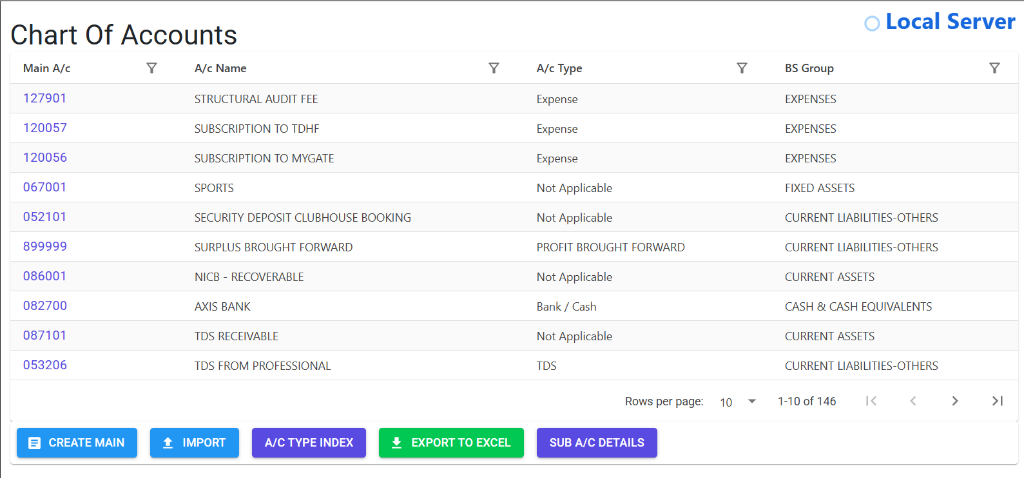
Browse Chart of Accounts
The Index Page provides a bird’s-eye view of your society’s entire General Ledger. You can search, filter, and export the list to Excel.
- Quick Actions: Use Create Main for new accounts, or Import to bulk upload accounts from a template.
- Navigation: Toggle between A/c Type Index for classification level views and Sub A/c Details for granular sub-ledger tracking.
View & Manage Account Details
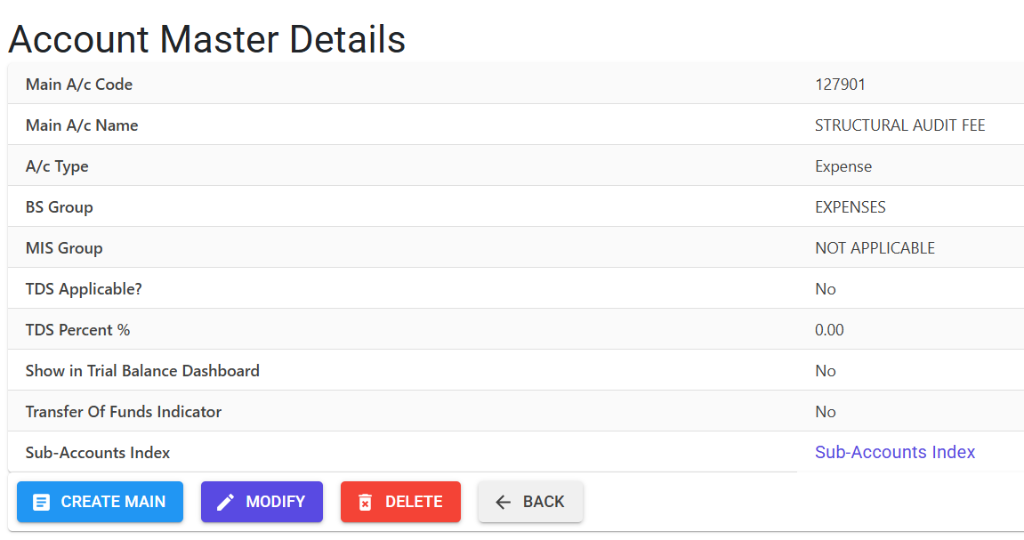
Clicking an Account Name or Code opens the Details View, where you can configure the specific properties of the ledger.
- Configuration: Set TDS applicability, Trial Balance dashboard visibility, and Balance Sheet grouping.
- Modifications: Update account names or parameters using the Modify button (Note: Core classification cannot be changed if transactions exist).
- Life Cycle: Use Delete to remove unused accounts (the system will block deletion if any financial entries exist).
6. Validations and Error Handling ⚠️
| Validation Type | What is checked? | Error Message / Action |
|---|---|---|
| Live Record | If trying to delete an account that has existing transactions. | “Master Record is live you can not delete this record.” |
| Negative Balance | If “Allow Negative” is off for a bank account. | Prevents vouchers that would result in an overdraft. |
| Duplicate Name | Ensures no two ledgers have the same name. | System blocks saving with a “Duplicate” alert. |
7. Best Practices / Tips 💡
ℹ️
- Standardize Naming: Use clear prefixes (e.g., “Exp - Security Charges” or “Inc - Interest on Bank”) for easier searching.
- Link Sub-Accounts: For complex heads, use the Sub-Accounts Index to maintain secondary levels of detail.
- Set TDS Correctly: If a vendor head requires TDS (e.g., Contractors), ensure the TDS percentage is set in the account master to automate accountant tasks.
- Review BSIE Links: Periodically check if your ledgers are linked to the correct Balance Sheet groups to ensure your financial statements remain accurate.