Member Master
Member Master - User Guide
ℹ️
⚡ Quick Start: Registering a Resident
- Access: Navigate to System Tools > Member Master.
- Details: Click Create New, enter Name, Flat No, and Building/Wing.
- Billing Info: Set the “Invoice Up To” date (this tells the system when to start billing from).
- Linking: Assign a Service Group (e.g., “Regular 2BHK”) to automate their monthly maintenance bill.
🗺️ Member Lifecycle Flow
graph TD
    Member[Member Master] --> Shares[Share Info / Certificates]
    Member --> Billing[Monthly Invoices]
    Member --> Receipt[Voucher Receipts]
    Member --> Docs[NOC / Nomination]
    Member --> Comm[Notices / Alerts]

    style Member fill:#f9f,stroke:#333,stroke-width:2px
1. Introduction 📝
The Member Master is the heart of the CHS ERP. It links every resident to their fiscal responsibilities (Maintenance) and legal rights (Shares and Nominations).
2. Usage in Transactions 🔄
The Member Master is the primary filter for almost every operational screen in the system:
- 📄 Invoice Generation: Whether single or Bulk Invoicing, the system pulls the member’s flat details and linked
Service Groupto calculate the bill. - 🧾 Voucher Receipt: When a member pays maintenance, the system identifies their outstanding balance via the Member Master.
- 📜 NOC & Nominations: Generates official “No Objection Certificates” and records legal heirs based on the member’s profile.
- 🚗 Parking Allotment: Links specific parking slots (Car/Scooter) to a member ID.
- 📢 Notice Board: The system pulls the member’s Mobile No (WhatsApp) and Email ID to broadcast notices.
3. Related Reports 📊
Member data drives the majority of society-resident reports:
- 🏛️ Member Statement / Ledger: A detailed report of all bills and payments for a specific member.
- 📋 Outstanding Dues Report: Summarizes which members owe maintenance and for how long.
- 📉 I & J Forms: Statutory registers that track membership and share transfers (derived from Share Info and Member Master).
- ⏳ Invoice Up-To Log: Monitors which members haven’t been billed for the current month.
4. Key Fields Highlights 🔍
- Flat No & Area: Crucial for calculating maintenance if the society bills “By Square Feet.”
- Invoice Up To: A safety date. The Bulk Invoicing system will never bill a member for a period earlier than this date, preventing duplicate bills.
- Member Status: Mark members as “Suspended” or “Ceased” to stop automated billing.
- Service Group Link: The direct link that tells the system what to bill this member (e.g., Residential vs Commercial).
5. Interface Walkthrough 🔄
Browse Member Master
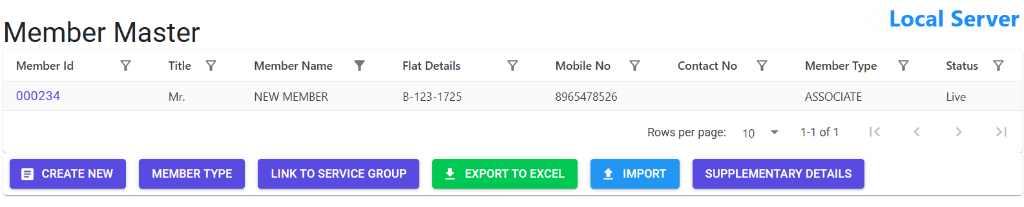
The Member Master Index is the central control panel for resident management.
- Master Grid: Track Member IDs, Names, Flat Details, and live Status (e.g., Live, Ceased) in a single view.
- Bulk Configuration: Use Link to Service Group to assign members to specific billing categories (1BHK, 2BHK, etc.).
- Data Management: Use Import to onboard new residents from Excel or Export to Excel for external verification and auditing.
- Deep Dive: Click Supplementary Details to access legal and facility management modules.
Supplementary Modules
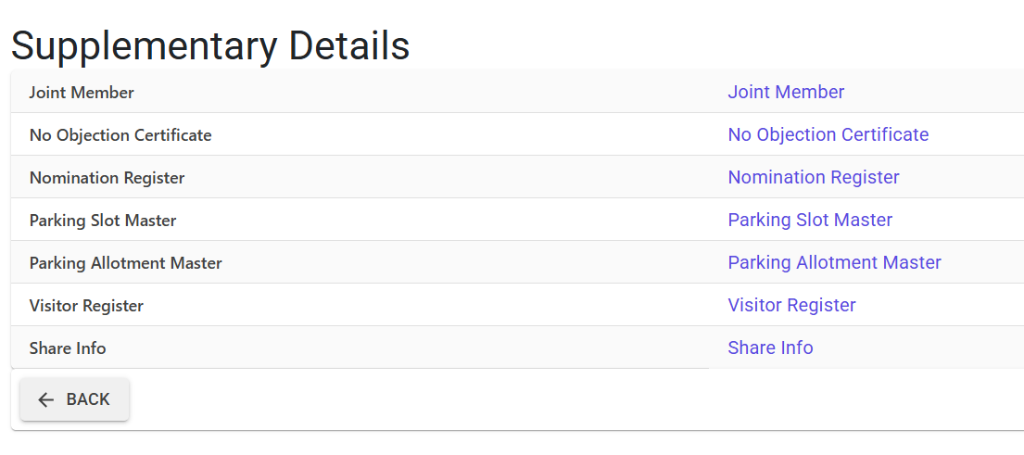
The Supplementary Details menu provides access to specialized member records.
- Legal Compliance: Visit Joint Member, Nomination Register, and Share Info to manage society membership and legal rights.
- Facility Management: Access Parking Slot Master and Parking Allotment Master to link vehicles to specific residents.
- Security & Ops: Monitor the Visitor Register for flat-specific guest entries and manage No Objection Certificates for official requests.
6. Best Practices / Tips 💡
ℹ️
- Use Excel Import: If you are setting up a new building, use the Member Mst Import tool to upload all residents at once.
- Set “Invoice Up To” Carefully: When a new member joins mid-year, set this date to the day before their first bill should start.
- Keep Mobiles Updated: A 10-digit mobile number starting with 6-9 is mandatory for the WhatsApp notice feature to work.
- Link Service Groups: Every member must be linked to a Service Group for Multiple Invoicing to function.