Payment & Receipt Voucher
Payment & Receipt Voucher - User Guide
⚡ Quick Start: 3-Minute Entry
- Navigate: Go to Finance > Voucher/Receipt.
- Header:
- Select Receipt (R) for money coming in or Payment (P) for money going out.
- Choose your Bank/Cash Account and enter the Date.
- Line Details:
- Select the Offset Account (Member, Vendor, or General Ledger).
- Enter the Amount and Cheque/UTR details.
- Linkage: For Member/Vendor entries, select the specific Bill/Invoice being settled.
- Save: Click Save. The accounting entry is instantly posted.
🗺️ Voucher Workflow
graph TD
    Type[Select Receipt or Payment] --> Account[Select Bank/Cash Account]
    Account --> Line[Add Line Items]
    Line --> Link[Link to Bills/Invoices]
    Link --> Balance[Check Bank Balance]
    Balance --> Save[Save & Post]

    style Type fill:#f0f4ff,stroke:#3b82f6
    style Balance fill:#fff7ed,stroke:#ea580c
    style Save fill:#f0fdf4,stroke:#16a34a
✅ Prerequisites Checklist
- Bank Master: All active bank accounts must be configured with opening balances.
- Member/Vendor Master: Data must be up-to-date with active balances.
- Instrument Details: Keep Cheque numbers or UTR references ready.
1. Introduction 📝
The Voucher module handles all two-sided money transactions involving your society’s liquid assets.
- Receipts (R): Member maintenance collection, interest received, rent from society facilities.
- Payments (P): Vendor settlements, salary payments, utility bill payments, petty cash expenses.
2. Advanced Features 🛠️
🏢 Member & Vendor Settlements
When selecting a Member or Vendor, the system fetches their outstanding Invoices (SI) or Purchase Bills (PB).
- Link the payment to a specific invoice to “knock off” the balance.
- The system prevents paying more than the outstanding amount to avoid accounting errors.
🚫 Negative Balance Protection
For Payment vouchers, the system checks the real-time balance of the selected Bank/Cash account. If the payment exceeds the available balance, and the account is not marked “Allow Negative,” the system will block the entry with an “Insufficient Balance” alert.
🖨️ Multi-Format Printing
Once saved, you can:
- Print a standard Payment/Receipt Voucher for physical filing.
- Print Cheques directly on your bank-provided stationery (requires layout configuration).
- Generate Bulk Payment Reports for committee approval.
3. Bulk Operations: Excel Import 📥
For societies with hundreds of entries (e.g., direct bank transfers for maintenance), use the Excel Import utility:
- Download Model: Get the standard
.xlsxtemplate. - Fill Data: Enter transaction numbers, accounts, and amounts.
- Upload: The system validates every line (Error codes Z1-Z12) for account names, dates, and amount formats.
- Audit: Review the system-generated error report before final submission.
4. Interface Walkthrough 🔄
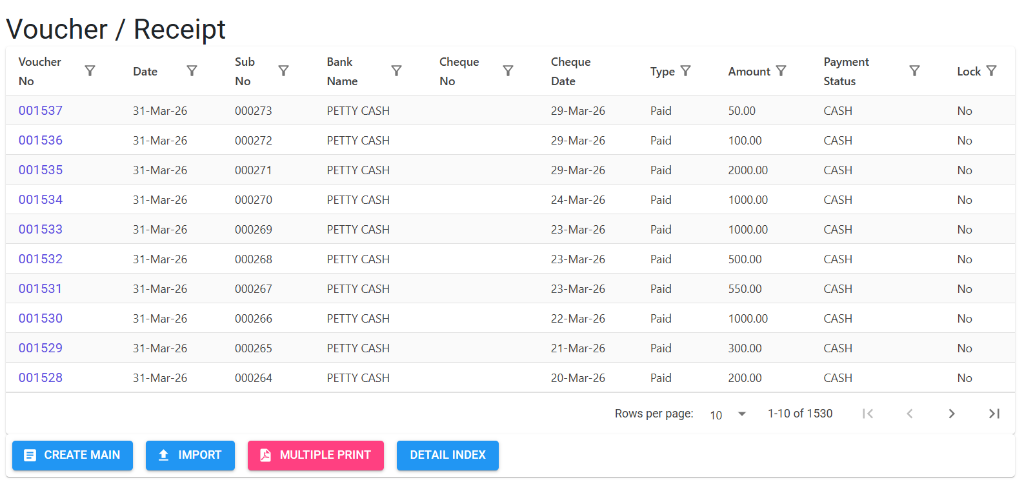
Browse Vouchers
The Index Page provides a comprehensive view of all financial transactions. You can use the search bar and filters to find specific entries by Date, Voucher Number, or Client details.
- Quick Actions: Access Create, Import, and Multiple Print tools directly from the footer.
- Status Tracking: Monitor “Lock” status and “Payment Status” at a glance.
View & Manage Details
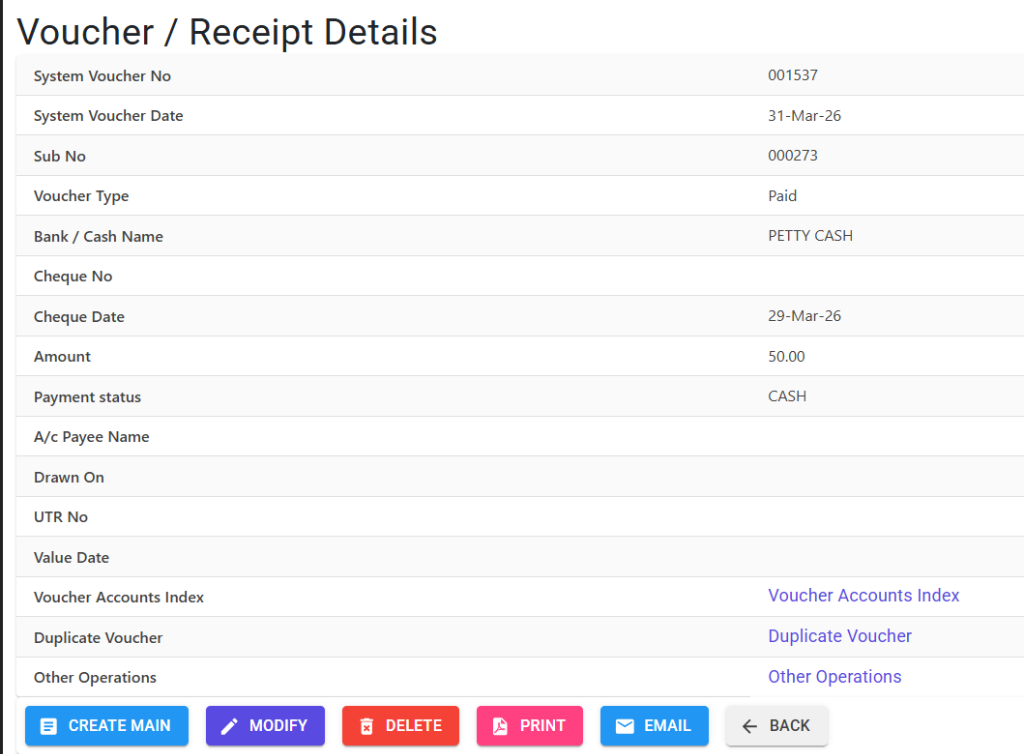
Clicking on a Voucher Number opens the Details View, which displays all header and line-item information.
- Modification: Use the Modify button to update entries (requires authorization).
- Communication: Directly Email or Print the voucher for members or vendors.
- Audit Trail: Every change is tracked via the “System Voucher” numbering logic.
5. Validations & Rules ⚖️
| Validation | Rule |
|---|---|
| Cheque Validity | Cheque date must be within +/- 90 days of the Voucher date. |
| Financial Year | Voucher date cannot be outside the active financial year range. |
| Duplicates | System blocks entry of the same Cheque No for the same Bank twice. |
| Ref No | Linking to an invoice requires a valid 6-digit Reference Number. |
6. Tips for Success 💡
- Use UTR for NEFT: Always enter the UTR number in the “UTR/Cheque No” field for easy reconciliation later.
- Copy Narration: If adding multiple lines for the same reason, use the “Copy Narration” toggle to save time.
- Check Reco Date: If the transaction has already cleared the bank, enter the Reco Date immediately to bypass the reconciliation step later.