Standard Instruction Master
Standard Instruction Master - User Guide
📈 Business Impact
The Standard Instruction Master ensures your society’s documents are legally robust and professional. It automates the inclusion of mandatory legal notes (e.g., payment deadlines, bank details, jurisdiction) on every PDF and email, reducing manual drafting errors and protecting the society in case of disputes.
⚡ Quick Start: Adding a Global Note
- Access: Navigate to System Tools > Standard Instruction Master.
- Assign: Select the Doc Type where the note should appear (e.g., Sales Invoice).
- Draft: Enter your text in the Notes area (e.g., “Interest will be charged at 18% p.a. on late payments”).
- Deploy: Every new document of that type will now automatically include these notes in the footer or email body.
🗺️ Communication Flow
graph TD
    SIM[Std Instruction Master] --> InvPrint[Invoice Footer PDF]
    SIM --> InvEmail[Invoice Email Body]
    SIM --> RecPrint[Voucher Receipt Note]
    SIM --> Daily[Daily Activity Report Note]

    style SIM fill:#f9f,stroke:#333,stroke-width:2px
1. Introduction 📝
The Standard Instruction Master is a central repository for recurring text blocks. Instead of typing “Terms & Conditions” on every invoice, administrators define them once here. The system then “injects” this text into the relevant outputs.
2. Usage in Transactions 🔄
A standard instruction is triggered whenever a document is printed or emailed:
- 📄 Maintenance Invoices: Typically used for bank details, interest clauses, and society “Office Hours.”
- 🧾 Voucher Receipts: Used for “Subject to realization of cheque” or “E&OE” (Errors and Omissions Excepted) disclaimers.
- 📧 Automated Emails: When sending an invoice via email, the
Notesfield from this master often serves as the Standard Email Body, saving users from typing a cover message every time. - 📅 Daily Activity: Can be used to add standard management disclaimers to the daily staff report.
3. Related Reports 📊
This master is purely “Operational” and appears on:
- 🖨️ Invoice PDF: Printed at the bottom of the main billing table.
- 🖨️ Receipt PDF: Printed below the payment details.
- 📩 Bulk Email Logs: The text is included in the transmission log of all broadcasted notices or invoices.
4. Managed Document Types 🔍
You can set specific instructions for:
- Sales Invoice: For maintenance and interest billing.
- Voucher / Receipt: For member payment acknowledgments.
- Sales Credit Note: For reverse billing adjustments.
- Daily Activity: For shift handover disclaimers.
5. Interface Walkthrough 🔄
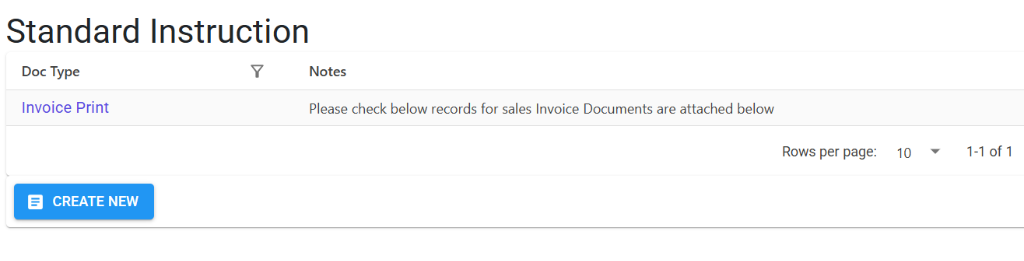
Browse Standard Instructions
The Index Page displays a grid of all configured instructions. You can quickly see which Document Types have active notes and preview the content.
- Quick Actions: Use the Create New button to add a new set of instructions for a different document type.
- Search & Filter: Find specific instructions using the filter icons on column headers.
View & Manage Details
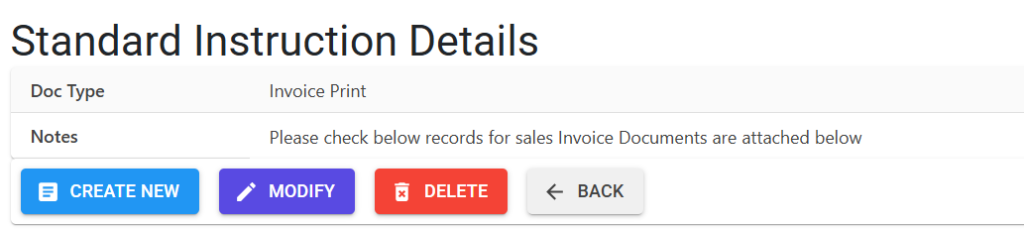
Selecting an entry opens the Details View, showing the full text of the notes assigned to that document type.
- Modification: Use the Modify button to update terms as they change over time.
- Deletion: Remove instructions that are no longer required using the Delete button.
- Navigation: Use the Back button to return to the main list.
6. Validations and Error Handling ⚠️
| Validation Type | What is checked? | Error Message / Action |
|---|---|---|
| Doc Type Select | Ensuring a category is picked for the notes. | Red validation highlight on the create screen. |
| Formatting | Large blocks of text. | The system automatically handles line breaks (<br>) when converting notes to email body. |
7. Best Practices / Tips 💡
- Keep it Concise: Footer space on PDFs is limited. Use bullet points for multiple terms and conditions.
- Include Bank Details: For “Sales Invoice” instructions, always include the society’s Bank Name, Account No, and IFSC to encourage direct transfers.
- Audit Annually: Review these instructions at the start of the financial year to ensure contact numbers and office hours are still accurate.
- Use for Email Hooks: Since this text doubles as the email body, start your note with a polite greeting (e.g., “Dear Member, please find attached the invoice for…”) to ensure the email looks professional.