Make Multiple Invoice
Make Multiple Invoice - User Guide
ℹ️
⚡ Quick Start: 3-Minute Bulk Billing
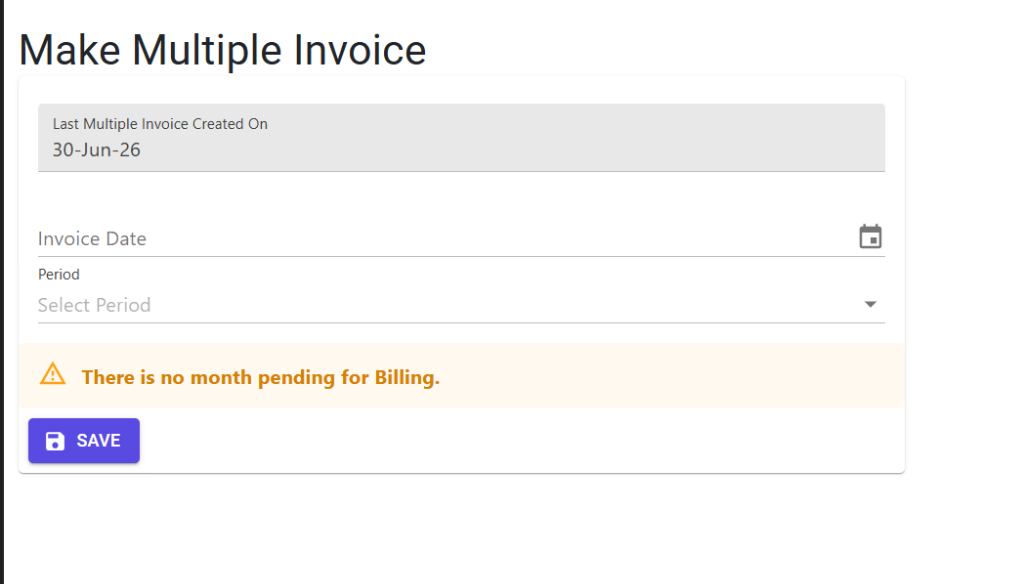
- Navigate: Go to Sales > Make Multiple Invoice.
- Check Status: Verify the Last Multiple Invoice Created On date.
- Select Period: Choose the Month/Period you wish to bill.
- Set Date: Pick the Invoice Date (usually the 1st of the month).
- Run: Click Save. The system will process all eligible members and return a success log.
🗺️ Bulk Billing Process
graph TD
    Start[Select Month] --> Check[Validate Pending Months]
    Check --> Suspend[System Auto-Suspension]
    Suspend --> Generate[Create Header & Lines]
    Generate --> Lock[System Locking Enabled]
    Lock --> Done[Invoices Generated & Logged]
    Done --> Unlock[System Unlocking]

    style Suspend fill:#fff4dd,stroke:#d4a017
    style Lock fill:#ffebee,stroke:#c62828
✅ Prerequisites Checklist
- Service Group Assignments: Every member must be linked to a service group.
- Billing Cycle: Ensure the “Membership Type” (Monthly/Quarterly) matches the billing run.
- Master Data: Check that no mandatory fields (Wing/Flat) are missing for active members.
1. Introduction 📝
The Make Multiple Invoice module is the primary engine for recurring billing. Instead of creating invoices one-by-one, this tool scans your entire member database and generates invoices based on their pre-configured Service Groups.
ℹ️
How it works:
- It identifies all members who are “Due” for billing (where
Invoice Upto Date<Selected Month End). - It automatically handles partial months if a member joined in the middle of a billing cycle.
- It calculates GST (CGST/SGST/IGST) based on the member’s state and the society’s location.
2. Advanced Features 🛠️
🛡️ Automated Member Suspension
The system performs a “Debt Audit” before billing. A member is automatically suspended by the system if:
- Their total outstanding balance exceeds 6 months’ worth of charges.
- Their dues exceed their Half-Yearly maintenance amount.
- Note: Suspended members will not be billed by the bulk tool until their status is cleared.
🔄 Rollback Utility
Mistakes happen. If a bulk invoice run was performed with the wrong date or period:
- Navigate to the Rollback option within the screen.
- Select the date on which the bulk invoices were created.
- Effect: The system will delete all system-generated invoices for that date and revert members’ “Invoice Upto” dates.
3. Validations & Safeguards ⚠️
| Validation Type | Logic | Action |
|---|---|---|
| Concurrency Lock | Only one bulk/interest process can run at a time. | Disables the “Save” button with a warning. |
| Sequence Check | Invoices cannot be back-dated before the last bulk run. | Calendar dates are greyed out. |
| Service Linkage | Members must have a Service Group assigned. | Warning: “Member Unlinked Count: [X]”. |
| Connected Docs | Cannot rollback if a receipt is already issued against an invoice. | Blocks the rollback process. |
4. Troubleshooting 🔍
⚠️
Common Issues
- Missing Invoices: If some members weren’t billed, check if they are “Suspended” or if their “Ceased Date” is in the past.
- Process Stuck: If the system says “Multiple Invoice in Progress” but no one is running it, an administrator must manually clear the
MultipleInvoiceInProgressflag in System Parameters. - Zero Amount Invoices: Ensure the Service Group linked to the member has non-zero tariffs.
5. Reports & Audit Logs 📊
After every run, the system generates:
- Bulk Creation Log: Found in the Society Log (Audit Trail), showing the range of invoice numbers created (e.g., “FROM 000101 TO 000150”).
- Exception Report: Lists members who were eligible but not billed due to missing masters or suspension.
- Draft PDF Set: A single command allows you to print all invoices for the batch for physical distribution.