Journal Voucher (JV)
Journal Voucher - User Guide
ℹ️
⚡ Quick Start: 3-Minute Adjustment
- Navigate: Go to Finance > Journal Voucher.
- Header: Enter the JV Date and a general description of the entry.
- Lines:
- Add a Debit Line: Select the Account and enter the Debit Amount.
- Add a Credit Line: Select the Account and enter the Credit Amount.
- Balancing: Ensure the Total Debit = Total Credit.
- Save: Click Save. The accounting entries are instantly posted.
🗺️ JV Workflow
graph LR
    Date[Set JV Date] --> Line1[Debit Account A]
    Line1 --> Line2[Credit Account B]
    Line2 --> Check[Verify Balancing: Dr = Cr]
    Check --> Save[Save & Audit]

    style Check fill:#fef9c3,stroke:#eab308
    style Save fill:#f0fdf4,stroke:#16a34a
✅ Prerequisites Checklist
- Chart of Accounts: Ensure all relevant accounts (Incomes, Expenses, Assets, Liabilities) are created.
- Reference Numbers: If adjusting a Member or Vendor balance, keep the original bill/invoice number ready.
1. Introduction 📝
A Journal Voucher is used for transactions that do not involve cash or bank accounts.
Common Use Cases:
- Transfer of Balances: Moving an amount from one expense head to another.
- Corrections: Adjusting an entry that was mistakenly posted to the wrong member.
- Provisions: Recording year-end liabilities (e.g., Audit Fees Payable).
- Depreciation: Recording the reduction in value of society assets.
Note on Links: JVs can be linked to Sales Invoices (SI) or Purchase Bills (PB) to adjust specific balances.
2. Advanced Features 🛠️
🔄 Multi-Line Adjustment
A single JV can have any number of lines. The system keeps a running total of debits and credits:
- You can debit multiple accounts and credit just one (Compound Entry).
- The system’s Account Manager helps you select between General Ledger (GL), Member, or Vendor sub-accounts.
⛓️ Invoice/Bill Linkage
If a JV involves a Member or Vendor, you can specify a Reference Type (SI/PB) and Reference No:
- The system retrieves the original amount and applies the adjustment directly to that specific invoice/bill.
- The “Reverse Dr/Cr” logic automatically handles cases where you need to reverse a previous entry.
3. Bulk Operations: Excel Import 📥
For complex year-end adjustments (like sweeping over 100 expense heads):
- Download Template: Get the standard JV Excel model.
- Fill Accounts: Use the account’s MIS Name for fast mapping.
- Upload: The system validates every line (Error codes A-G) for account existence and balancing.
- Confirm: Only balanced JVs are accepted into the ledger.
4. Interface Walkthrough 🔄
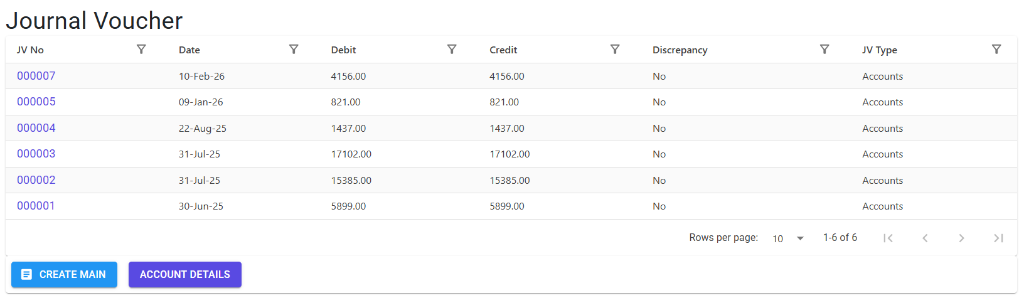
Browse Journal Vouchers
The Index Page displays a chronological list of all journal adjustments. Use the filter bars to search by JV Number, Date, or specific account names to quickly audit entries.
- Quick Actions: Use the footer buttons to Create Main entry or view Account Details.
- Filter & Search: Each column header allows for quick sorting and filtering to find specific discrepancies.
View & Manage Details
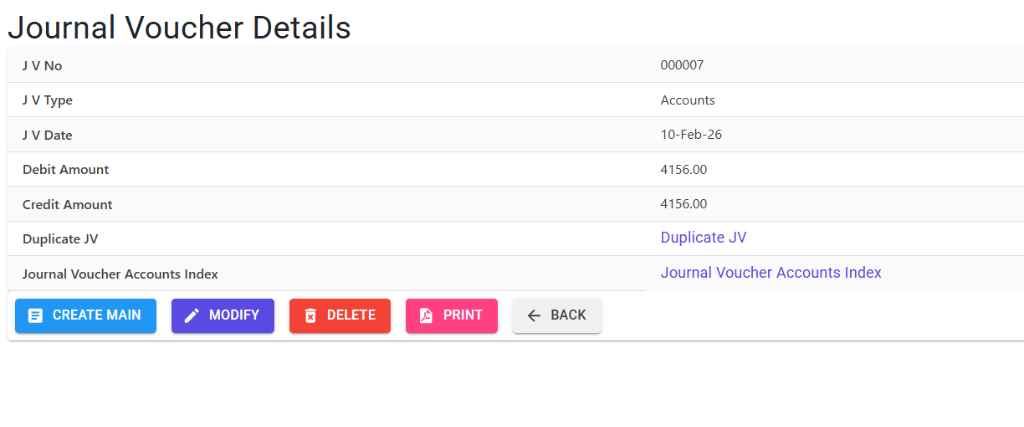
Selecting a JV Number opens the Details View, showing the balanced debit and credit legs of the transaction.
- Operations: Use Modify, Delete, or Print buttons to manage the record.
- Navigation: Use the Back button to return to the index or Duplicate JV to copy the entry for a new date.
- Audit: Access linked the “Journal Voucher Accounts Index” directly for a deep dive into the ledger impact.
5. Validations & Constraints ⚖️
| Validation | Logic |
|---|---|
| Out-of-Balance | System blocks saving if Total Debits != Total Credits. |
| Financial Year | JV date must be within your society’s active fiscal year. |
| Line Mandatory | At least two lines (one debit, one credit) are required. |
| Amount | Amount must be greater than zero for every line. |
6. Tips for Success 💡
ℹ️
- Use Narrations: Detailed line-level notes (e.g., “Correction for Invoice 123”) make audits much faster.
- Recurring Entries: Use the Duplicate JV button to copy a complex adjustment from a previous month and just update the date.
- Locking: Once a JV is linked to a finalized financial report, the system will prevent modification or deletion.