Transfer of Fund
Transfer of Fund - User Guide
📈 Business Impact
The Transfer of Fund module simplifies the most common daily banking activities: withdrawing cash for society expenses or depositing maintenance checks. By creating a Dual Entry (both a payment and a receipt) in a single click, it ensures your bank statement and cash book are always in perfect sync.
⚡ Quick Start: 3-Minute Transfer
- Navigate: Go to Finance > Transfer of Fund.
- Setup Source:
- Select Transfer Out Of (e.g., Bank A).
- Enter the Withdrawal Date.
- Setup Destination:
- Select Transfer Into (e.g., Petty Cash Account).
- Enter the Amount.
- Instrument: Select the Payment Instrument (Cheque, NEFT, or Cash).
- Confirm: Click Create Transfer. The system creates one Payment from Bank A and one Receipt into Petty Cash.
🗺️ Transfer Workflow
graph LR
    Source[Bank 'OUT'] --> Destination[Bank 'IN']
    Destination --> VoucherP[Create Payment Voucher]
    VoucherP --> VoucherR[Create Receipt Voucher]
    VoucherR --> Ledger[Update Both Ledgers]

    style Source fill:#fef2f2,stroke:#ef4444
    style Destination fill:#f0fdf4,stroke:#22c55e
    style Ledger fill:#f8fafc,stroke:#334155
✅ Prerequisites Checklist
- Chart of Accounts: Both the Source and Destination accounts must exist under the Cash/Bank group.
- Fund Transfer A/c: A dummy account with Type ‘F’ (Fund Transfer) must exist for internal balancing.
- Balance Check: The source account must have enough balance.
1. Introduction 📝
Internal transfers are unique because the society’s total wealth doesn’t change, but its location does. Common Use Cases:
- Cash Withdrawal: Moving money from a society bank account to Petty Cash.
- Cash Deposit: Depositing cash collected from various services into the society bank account.
- Bank-to-Bank: Moving a corpus from a Savings Account to a current account for vendor payments.
2. Advanced Features 🛠️
🛡️ Automated Negative Balance Alert
Before saving, the system’s ComputeBal engine scans the ledger of the source account. If the transfer amount exceeds the current balance (excluding authorized but uncleared cheques), the system displays a warning.
- Note: If the account is marked “Allow Negative” (like an Overdraft account), this warning will not block the entry.
⛓️ Connected Documents
Each transfer creates a specific Internal Link:
- From the Transfer Status Report, you can click a button to see the “Connected Document” (the corresponding payment or receipt voucher).
- This ensures that deleting one side of the transfer also flags the other for consistency.
3. Interface Walkthrough 🔄
Record a Transfer
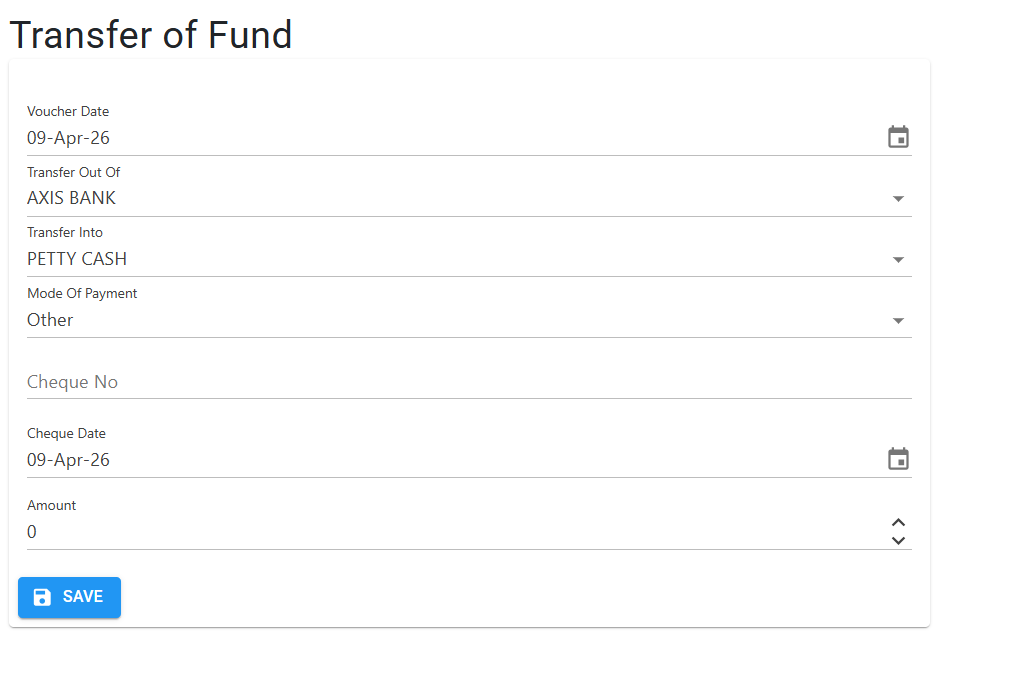
The Entry Screen is designed for speed and accuracy, allowing you to move funds between any two bank or cash accounts in your society.
- Fields: Specify the Voucher Date, the source (Transfer Out Of), and the destination (Transfer Into).
- Payment Details: Choose the Mode Of Payment (Cheque, Other, etc.) and enter corresponding audit details like Cheque No and Amount.
- Instant Confirmation: Once you click Save, the system automatically generates balanced Payment and Receipt vouchers in the background.
4. Validations & Constraints ⚖️
| Validation | Logic |
|---|---|
| Self-Transfer | System blocks selecting the same account for both Out and In. |
| Import Conflict | Fund transfers are blocked while a background Excel voucher import is running to prevent balance corruption. |
| Instrument Type | Cheque dates must be within 90 days. |
| Future Dates | Future dating a fund transfer is strictly prohibited. |
5. Tips for Success 💡
- Bank Charges: If a bank-to-bank transfer incurs charges, record the transfer here for the full amount, then record the charges separately as a Payment Voucher.
- Cash in Hand: Always verify your physical cash box matches the “Transfer Into” amount before finalizing the entry.
- Audit Trail: The system logs every transfer as a “Fund Transfer” activity, making it easy to filter internal movements from actual expenses in the reports.