Purchase Debit Note (PDN)
Purchase Debit Note - User Guide
ℹ️
⚡ Quick Start: 3-Minute Debit Adjustment
- Locate: Find the Original Bill under Supply Chain > Purchase Bill Index.
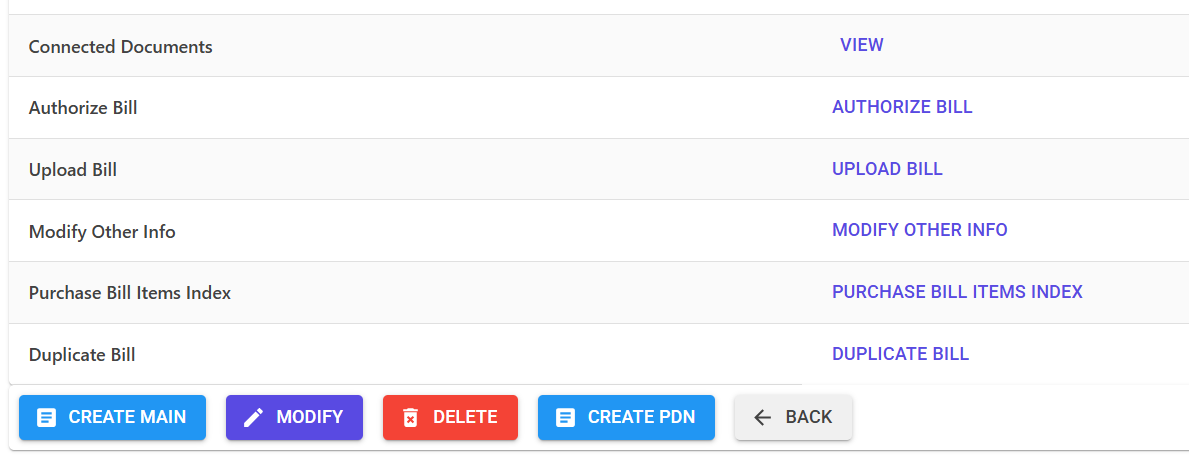
- Create PDN: Open the Bill Details and click the Create PDN button at the bottom.
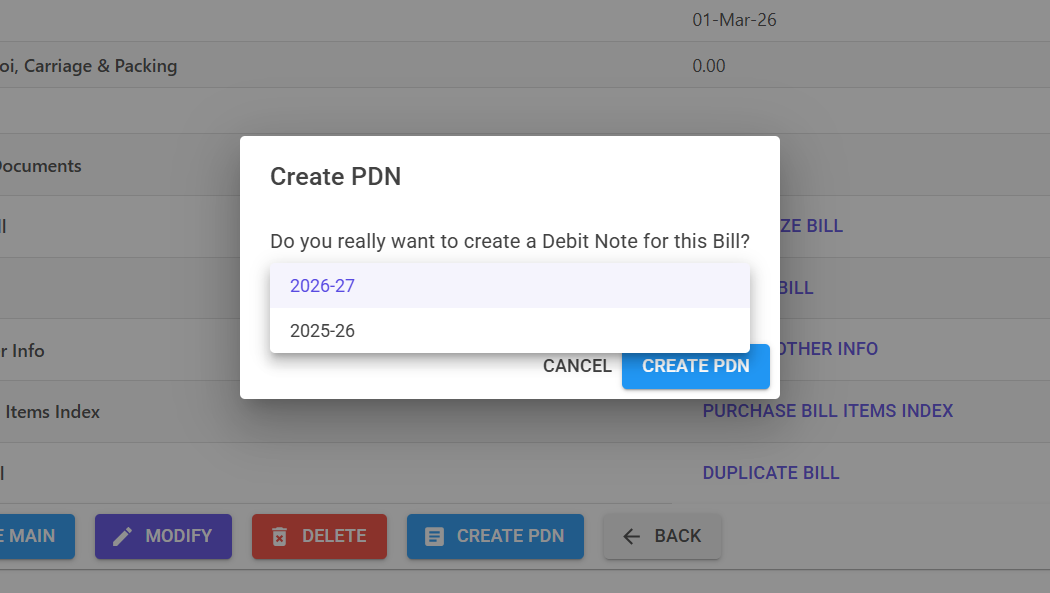
- Select Year: Pick the Financial Year for the PDN if it’s different from the active year.
- Adjustment: Specify the Debit Amount for the accounts being adjusted.
- Review: The system will auto-recalculate GST (CGST/SGST/IGST) proportionally.
- Save: Click Save. The vendor’s ledger is now updated with the debit entry.
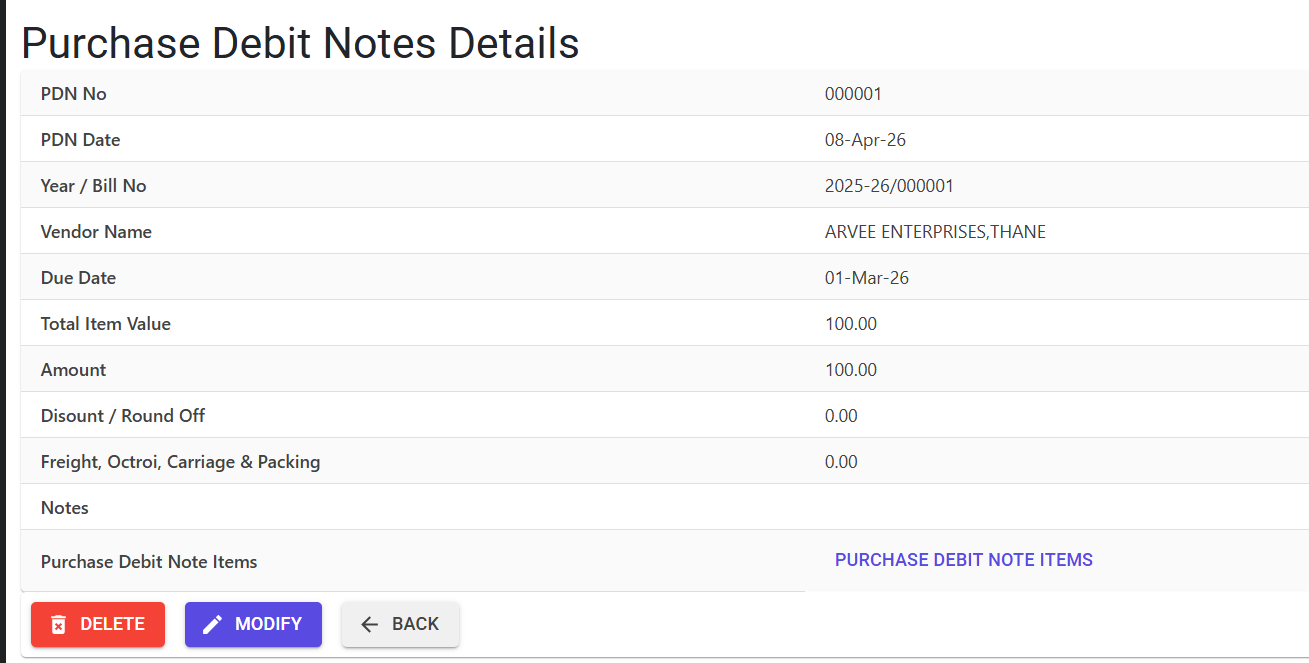
🗺️ Debit Note Process
graph LR
    Bill[Original Bill] --> Action[Click 'Create PDN']
    Action --> Clone[Copies Header & Line Items]
    Clone --> Modify[Update Amounts/Notes]
    Modify --> GST[Pro-rata GST Recalculation]
    GST --> Save[Save & Update Vendor Ledger]

    style Action fill:#fef3f2,stroke:#f04438
    style GST fill:#f0f9ff,stroke:#0ea5e9
✅ Prerequisites Checklist
- Linked Bill: A valid Purchase Bill must exist as the “Source” for the PDN.
- Authorization: The original bill must be authorized before a PDN can be modified effectively.
- Reason for Debit: Common reasons (e.g., Returns, Damages, Overcharging) should be noted.
1. Introduction 📝
A Purchase Debit Note (PDN) is issued by the society to a vendor to reduce the amount owed. It acts as a formal record of a return or an adjustment to a previously received bill.
ℹ️
Core Logic:
- A PDN debits the vendor’s account, reducing the total payables.
- It must be linked to a specific Purchase Bill to ensure that taxes are correctly reversed.
- The system automatically maps the Supply State from the original bill to maintain GST compliance for reversals.
2. Advanced Features 🛠️
⛓️ Hard Link to Purchase Bill
Unlike manual journal vouchers, a PDN is automatically linked to its source bill. This creates a clear trail for auditors and prevents duplicate adjustments.
- You can view the original bill directly from the PDN page.
- The system prevents creating multiple PDNs against the same bill if the first adjustment already covers the total amount.
🧮 Smart Tax Reversals
When you adjust the base amount of the debit note, the system’s ComputePDNValues engine:
- Identifies if the adjustment was for a Local (L1) or Interstate (I1) supply.
- Reverses the exact proportion of CGST, SGST, or IGST originally claimed as input tax credit.
3. Validations & Constraints ⚠️
| Validation Type | Logic | Action |
|---|---|---|
| Source Mismatch | If the original bill’s total amount is not finalized. | Warning: “System Bill Amount & Vendor Bill Amount difference exists.” |
| Deletion Audit | To delete a PDN. | Requires a mandatory Delete Reason for the society logs. |
| Locking | If the PDN is already linked to other documentation or vouchers. | Disables modification and deletion. |
4. Reports & Audit 📊
- 📄 Debit Note Report: A PDF document summarizing the header (Vendor Info), adjusted lines (Account Headers), and tax reversal components.
- 📋 PDN Register: A summary of all debit adjustments made across the society’s supply chain.
- 📉 Vendor Ledger: Shows the original bill as a “Credit” and the PDN as a “Debit”, with the net “Final Balance”.
5. Tips for Best Practice 💡
ℹ️
Expert Usage
- Note References: Always include the vendor’s credit note reference number (if they provided one) in the PDN Notes for easier reconciliation.
- Timeline: Try to record the PDN in the same tax month as the original bill whenever possible to simplify your GST filings.
- Review Credits: If the vendor provides a formal Credit Note, use the PDN tool instead of a manual journal entry to ensure GST amounts are tracked correctly.