RTGS / NEFT Master
RTGS / NEFT Master - User Guide
ℹ️
⚡ Quick Start: Setting Up a Transfer Profile
- Access: Navigate to Masters > RTGS Master.
- Details: Select the Vendor (from Vendor Master) and enter their Bank Account No, IFSC Code, and Account Type.
- Verify: Ensure the Beneficiary Name matches their bank record exactly.
- Deploy: Use this profile during Payment Vouchers to generate bulk bank upload files or advice letters.
🗺️ Digital Payment Flow
graph LR
    Master[RTGS Master] --> Vouc[Payment Voucher]
    Vouc --> Advice[Bank Advice Letter]
    Advice --> Upload[Bulk Upload File CSV]
    Upload --> Bank[Bank Portal Import]

    style Master fill:#f9f,stroke:#333,stroke-width:2px
1. Introduction 📝
The RTGS Master acts as a “Beneficiary Address Book” for the society. It stores the sensitive bank information required for making National Electronic Fund Transfers (NEFT) or Real-Time Gross Settlement (RTGS) payments.
2. Usage in Transactions 🔄
- 🧾 Payment Vouchers: When a payment is marked as “Electronic,” the system pulls the bank details from the RTGS Master.
- 📄 Advice Letters: Prints a formal request to your society’s bank (with all beneficiary details) to process the payment.
- 📦 Bulk Uploads: Generates a CSV or Excel file that can be uploaded directly to most corporate banking portals (HDFC, ICICI, SBI) for bulk processing.
3. Related Reports 📊
- 📋 NEFT / RTGS Log: A tracking report of all electronic instructions issued by the society.
- 📉 Beneficiary Register: A checklist for reviewing all stored vendor bank details.
- 🏦 Bank Reconciliation: The reference numbers generated during RTGS transfers are used for automated matching.
4. Key Security Fields 🔍
- IFSC Code: Vital for routing the transaction to the correct branch.
- Beneficiary Name: Used as the “Pay To” name in bank verification.
- Mobile / Email: For sending payment alerts to the vendor.
5. Interface Walkthrough 🔄
Browse RTGS Master
The Index Page provides a central repository of all registered beneficiaries.
- Vendor Snapshot: View Bank Name, A/c No, and IFSC code at a glance.
- Quick Actions: Export all details to Excel or use the Import tool for bulk updates.
- Status Filter: Quickly identify active or inactive transfer profiles.

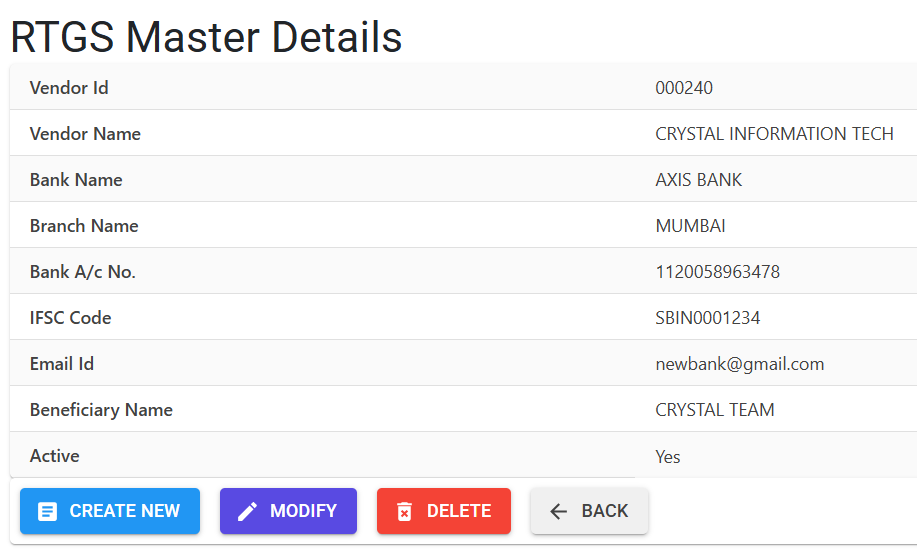
View & Manage Details
Clicking on a Vendor Name opens the Details View, which contains all sensitive banking information.
- Beneficiary Profile: Comprehensive view including Vendor ID, Branch, and Email for alerts.
- Maintenance: Use the Modify button to update bank details or Delete to remove obsolete profiles.
- Workflow: Direct navigation back to the master list using the “Back” button.
6. Best Practices / Tips 💡
ℹ️
- Collect Cancelled Cheques: Always ask vendors for a cancelled cheque or bank passbook copy before entering data in the RTGS Master to avoid “Account Not Found” errors.
- Bulk Import: Use the RTGS Mst Import tool to upload multiple beneficiary details at once when migrating systems.
- Double Verify IFSC: Use the system to verify the Bank and Branch name associated with an IFSC before saving.
- Audit Trails: Regularly review the RTGS master for changes; any modification to bank accounts should be approved by the society treasurer.