Standard Tariff Master
Standard Tariff Master - User Guide
ℹ️
⚡ Quick Start: Setting a Rate
- Access: Navigate to System Tools > Standard Tariff Master.
- Define: Click Create New, enter a descriptive Tariff Name (e.g., “Gym Membership”), and set the Amount.
- Link: Select the appropriate Account Head (e.g., “Facility Charges”) to ensure the revenue is recorded correctly in your books.
- Deploy: Once active, these tariffs are ready to be used in recurring or one-time resident billing.
1. Introduction 📝
The Standard Tariff Master allows administrators to create a catalog of standard rates for services like coaching (Skating, Swimming), memberships (Gym, Library), or fixed administrative fees (Cheque Return Charges).
2. Key Fields Breakdown 🔍
| Field Name | Description & Validations |
|---|---|
| Tariff Name | Descriptive name for the service (up to 100 characters). Must be unique. |
| Account Name | The ledger under which the revenue will be booked. Must be an active revenue head. |
| Amount | The price charged to the member. Must be between 1 and 9,999,999.99. |
| Charge Type | Fixed (pre-defined amount) or Adhoc (can be modified at the time of billing). |
| Taxable | Flag to indicate if GST or other taxes apply to this specific charge. |
3. Interface Walkthrough 🔄
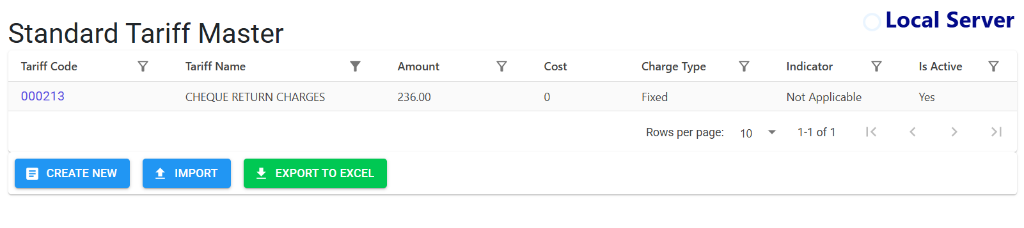
Browse Standard Tariffs
The Index Page provides a summary of all active and inactive service rates.
- Pricing Snapshot: View Tariff Codes, Names, and current Amounts at a glance.
- Service Indicators: Easily identify Charge Types (Fixed vs. Adhoc) and tax indicators.
- Data Management: Use Import to bring in bulk tariff lists or Export to Excel for service review.
Configure Tariff Details
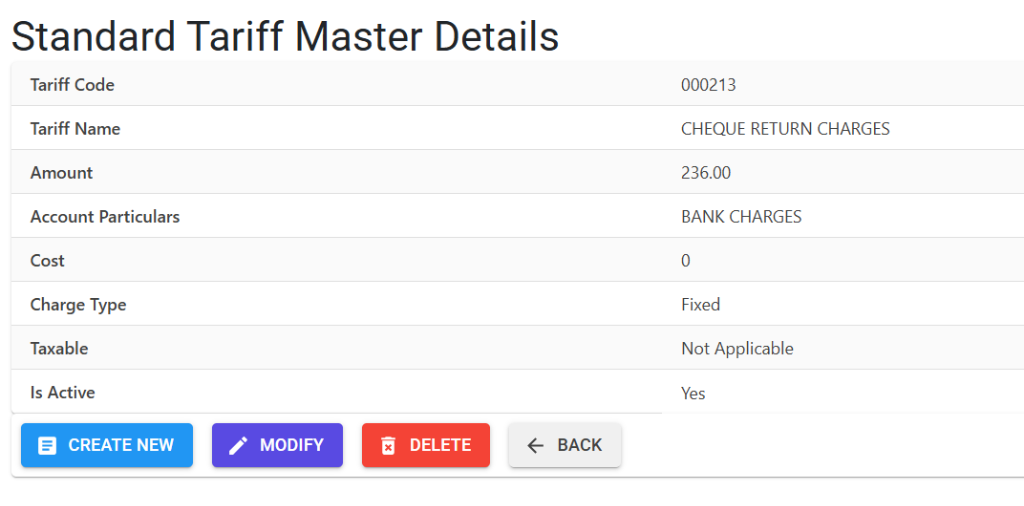
Clicking on a Tariff Code opens the Details View for precise pricing configuration.
- Revenue Mapping: Verify the Account Particulars to ensure correct ledger entries in financial reports.
- Financial Controls: Manage the relationship between Amount (selling price) and Cost (if applicable).
- Operational Profile: Use Modify to update rates for the next season or Delete if a service is discontinued.
4. Best Practices / Tips 💡
ℹ️
- Standardized Naming: Use clear, consistent names like “Swimming - Monthly” vs “Swimming - Quarterly” for easier member identification.
- Audit Revenue: Periodically export your tariffs to Excel to ensure they match the society’s approved resolutions for the current year.
- Inactive Records: Instead of deleting, mark old tariffs as “In-Active” to maintain billing history for previous years.