Bank Reconciliation Statement (BRS)
Bank Reconciliation - User Guide
ℹ️
⚡ Quick Start: 3-Minute Reconciliation
- Navigate: Go to Finance > Bank Reco Option.
- Setup:
- Select the Bank Account you want to reconcile.
- Set the From Date and To Date (usually for a specific month).
- Download: Click Download Model. This gives you an Excel sheet with all uncleared transactions.
- Update: Open the Excel file and fill in the Reco Date (the date the transaction cleared your bank) for each item.
- Upload: Select the updated Excel file and click Bank Reco Upload.
- Validate: The system confirms the number of updated records.
🗺️ Reconciliation Workflow
graph TD
    Select[Select Bank & Period] --> Download[Download Uncleared Items]
    Download --> Match[Compare with Bank Statement]
    Match --> Update[Fill Reco Date in Excel]
    Update --> Upload[Upload Updated Sheet]
    Upload --> Report[Generate BRS Report]

    style Select fill:#f0f4ff,stroke:#3b82f6
    style Download fill:#fff7ed,stroke:#ea580c
    style Report fill:#f0fdf4,stroke:#16a34a
✅ Prerequisites Checklist
- Bank Statement: Have your physical or PDF bank statement ready.
- Voucher Entries: All receipts and payments for the period must be recorded in the system.
- Year Range: Reconciliation must stay within the bounds of your active financial year.
1. Introduction 📝
Bank reconciliation is the process of comparing your society’s internal accounting (“Bank Book”) with the official statement from the bank. Items often causing a difference:
- Uncleared Receipts: Cheques you deposited but haven’t been credited by the bank yet.
- Unpresented Cheques: Cheques you issued to vendors but haven’t been cashed yet.
- Bank Charges: Direct deductions by the bank (record these first via a Payment Voucher).
2. Advanced Features 🛠️
📊 Uncleared Transactions Report
The system’s BankRecoModel generates an Excel list of all vouchers that do not have a Reco Date. This is your “Working Sheet” for the month-end close.
- Note: Items without a Reco Date are automatically carried forward to the next month’s reconciliation.
🛡️ Smart Validation Rules (Z1-Z7)
When you upload the reconciliation sheet, the system’s BankRecoUpload engine performs several checks:
- Voucher ID: A hidden system ID ensures that the reconciliation is applied to the exact transaction (don’t delete this column!).
- Date Format: “Reco Date” must be in the
dd-MMM-yyformat. - Timeline Logic: System blocks a Reco Date that is before the actual Cheque Date (Error D).
- Audit Logic: System flags items where the Reco Date exceeds 3 months from the Cheque Date (Error E - potential stale cheque).
3. Interface Walkthrough 🔄
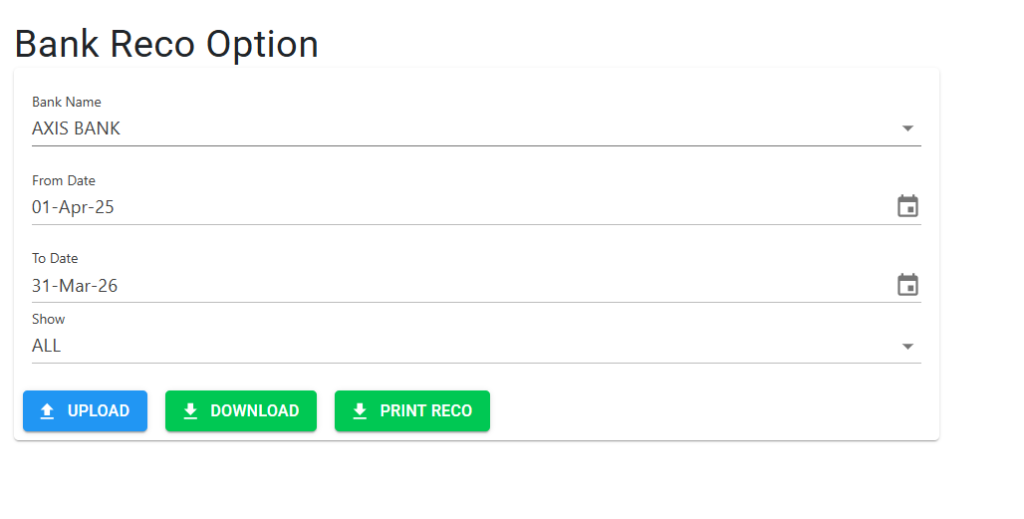
Select Bank & Timeline
The Options Screen allows you to define exactly which bank account and time period you are reconciling.
- Selection: Choose your Bank Name and set the From and To dates to match your bank statement period.
- Filter Options: Use the Show dropdown (Default: ALL) to filter specifically for uncleared or all transactions.
- Operations:
- Download: Export the uncleared vouchers into an Excel template.
- Upload: Import the completed Excel sheet with clearance dates.
- Print Reco: Generate the final reconciliation statement for committee approval.
4. Financial Reports: The BRS Report 📑
Once reconciled, you can generate the Print Reco report:
- Balance as per Bank Book: Found in your ledger.
- Add/Less Adjustments: Detailed list of unpresented/uncleared cheques.
- Balance as per Bank Statement: The final figure must match your physical statement.
Reporting Rule: Most societies are required to present a BRS for and up to one month during committee meetings. The system supports this with easy date-range filtering.
5. Validations & Constraints ⚖️
| Validation | Logic |
|---|---|
| Future Dates | You cannot reconcile a transaction for a date in the future (Error G). |
| Stale Cheques | If the Reco Date is >90 days from the instrument date, the system will alert you to investigate. |
| Data Integrity | Reconciled items are locked from modification to prevent accounting errors after final closure. |
6. Tips for Success 💡
ℹ️
- Reconcile Regularly: Reconciling weekly instead of monthly makes it much easier to spot missing entries.
- Check Stale Cheques: If an unpresented cheque remains on your BRS for over 6 months, consider Revoking and Redrawing the instrument.
- Direct Bank Charges: Before starting reconciliation, always check your statement for direct bank charges (interest, SMS fees) and record them as Payment Vouchers first.