Generate Interest Invoice
Generate Interest Invoice - User Guide
ℹ️
⚡ Quick Start: 3-Minute Interest Billing
- Navigate: Go to Sales > Generate Interest Invoice.
- Review Period: Set the From Date and To Date for calculating the interest.
- Set Date: Choose the Invoice Date for the new interest bills.
- Rate: Verify the system-calculated interest Rate (e.g., 21% per annum).
- Print & Generate: Click Print to download a detailed report and generate invoices for all defaults.
🗺️ Interest Billing Process
graph TD
    Start[Set Calculation Range] --> Analyze[Scan All Member Outstanding]
    Analyze --> Filter[Exclude Non-Defaulters]
    Filter --> Calc[Apply Interest Rate @21%]
    Calc --> GST[Map to Interest Service Group]
    GST --> Save[Generate S1 Invoice]
    Save --> Lock[Update System generated Status]

    style Calc fill:#f9f5ff,stroke:#6941c6
    style Lock fill:#fef3f2,stroke:#f04438
✅ Prerequisites Checklist
- Service Group Link: A specific “Interest” service group must be configured with an active Tariff Code.
- Lock Check: Ensure no Multiple Invoice job is currently running.
- Financial Year: Calculation dates must be within the active financial year’s range.
1. Introduction 📝
The Generate Interest Invoice module performs complex calculations on members’ defaulted balances. It identifies which invoices were not paid within their due dates and applies a defined interest rate on the principal outstanding amount.
ℹ️
How interest is calculated:
- It scans all “DUE” invoices up to the To Date.
- It calculates the net Chargeable Amount (Outstanding - Interest Outstandings) to avoid charging interest on interest.
- The system uses a standard rate (often configured at 21% per annum).
2. Key Features ✨
🚫 Interest-on-Interest Prevention
The system is designed with financial integrity in mind. During calculation, it:
- Separates the Interest Outstanding from the Principal Outstanding.
- Only bills interest on the Chargeable Principal amount.
- This prevents unfair compounding of interests which may not be permitted in some society bylaws.
🏠 Member Cleanup
The generation process includes an automated Account Reconciliation step:
- If a member has a zero total outstanding but still has “DUE” interest invoices from the past, the system automatically marks them as RECD (Received) to clean up the member’s ledger.
3. Validations & Error Handling ⚠️
| Validation Type | Logic | Action |
|---|---|---|
| Concurrency Lock | If InterestInvoicesGeneratedUpto status is ‘Y’. |
Blocks new generation with a “Please wait” alert. |
| Service Group Map | If no service group of type ‘I’ (Interest) exists. | “Interest Service Group needs to be selected”. |
| Date Sequence | Cannot calculate interest for a period already generated. | System checks the sysparameters for the last run date. |
| Zero Interest | If a member owes less than the minimum interest threshold. | Does not generate an invoice for that member. |
4. Interface Walkthrough 🔄
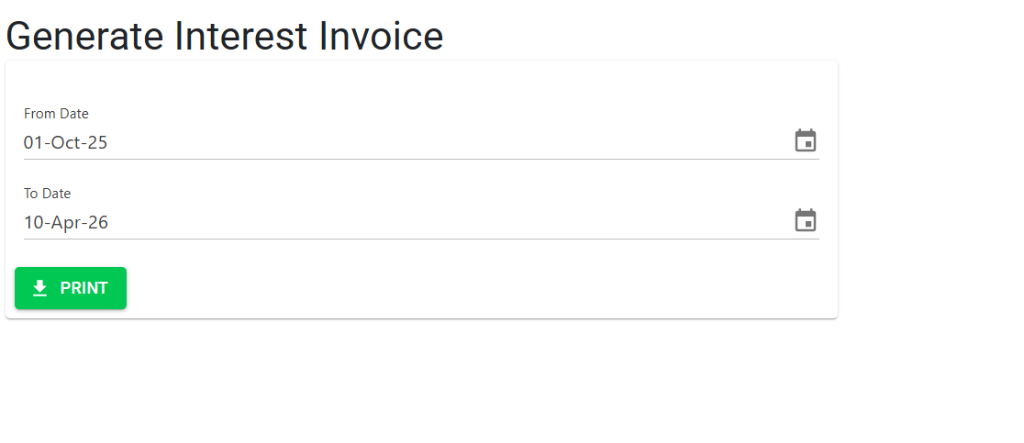
Generate Interest Invoice
The Interest Generation Screen is a straightforward tool for initiating society-wide interest billing.
- Period Selection: Define the From Date and To Date to capture all defaults within that specific timeframe.
- Batch Processing: Click Print to start the bulk calculation and generation process. The system will process all defaulters in a single background job.
5. Reports & Outputs 📊
- Interest Generation Report (Excel): A detailed spreadsheet showing:
- Member ID & Name (with Wing/Flat details).
- Original Outstanding.
- Previous Interest Due.
- Current Interest Calculated.
- 📄 Interest Invoice: A formal GST invoice with a custom note (e.g., “Interest @21% on [Chargeable Amount]”).
6. Security & Deletion 🔍
⚠️
Important Note
- One-way Process: Interest invoices, once generated, are treated like regular sales invoices. To cancel them, you must either reverse them via a Sales Credit Note or delete them manually from the Browse screen with a reason.
- Bulk Locking: The system is locked during generation to prevent data corruption from other transactions.