Invoice Management
Invoice Module - User Guide
ℹ️
⚡ Quick Start: 2-Minute Fast Track
For experienced users who need to bill a specific member immediately:
- Details: Navigate to Invoice Create, select the Invoice Date and GST Sub-Type.
- Member & Service: Use the Member Search to pick a member and select the appropriate Service Group.
- Period: Pick the Billing Month, enter optional Notes, and click Save.
- Finalize: The system automatically calculates taxes and creates the invoice PDF ready for distribution.
🗺️ billing Workflow
graph LR
    Master[Service Group Master] --> Single[Single Invoice]
    Master --> Bulk[Make Multiple Invoices]
    Single --> PDF[Print/Email PDF]
    Bulk --> PDF
    PDF --> Receipt[Voucher/Receipt]

    style Bulk fill:#f9f,stroke:#333,stroke-width:2px
✅ Prerequisites Checklist
Before generating invoices, ensure:
- Service Group Master: Service groups (e.g., Maintenance, Water, Parking) are configured with correct tariffs.
- Member Master: Members are admitted and not marked as “Suspended”.
- Financial Year: The current date falls within the active financial period.
- Standard Instructions: Default terms and conditions are updated in the Master settings.
1. Introduction 📝
The Invoice module handles all periodic and one-time billing for society members. It supports regular upkeep charges, utility billing, and special levies.
ℹ️
Core Functionality:
- It automatically fetches rates from Service Groups based on membership types.
- It handles complex GST calculations (CGST, SGST, or IGST) based on the place of supply.
- It keeps track of the “Invoice Up To” date for each member to prevent duplicate billing.
Typically, this module is used by Society Managers and Accountants to ensure monthly or quarterly maintenance charges are generated accurately.
2. Managing Invoices 🚀
Accessing the Module
Navigate to the Invoicing section from the main menu. You will find options for:
- Invoice Browse: View and manage existing invoices.
- Invoice Create: For generating a single, specific invoice.
- Make Multiple Invoice: For bulk monthly billing.
- Generate Interest Invoice: To bill late payment interests.
The Index Page
The Index Page shows all invoices for the selected financial year. You can:
- Filter/Search: Search by Member Name, Flat Number, or Invoice No.
- Recalculate: If line items are manually edited, the system can recompute GST totals.
- Delete: Remove incorrect invoices (requires a mandatory reason for audit logs).
3. Features ✨
The Invoice module is designed for both speed and precision:
- 🔢 Auto-Doc Numbering: Invoices and Sub-codes (Gst Sub-Types) are automatically sequenced by the system.
- 📦 Service Group Mapping: Define a group of services (Maintenance + Security + Gym) and bill them as a single entity.
- 🗓️ Periodic Billing: System tracks member “Valid Upto” dates and suggests the next billing period automatically.
- ⚡ Invoice Cum Receipt: A specialized tool for walk-in members to create an invoice and record payment (Cash/Cheque/Bank) in a single step.
- 🔄 Bulk Generation: The Make Multiple Invoice feature scans all due members and generates hundreds of invoices in one click.
- 🕒 Interest Generation: Automated calculation of simple or compound interest on outstanding dues based on system parameters.
- 🛑 Rollback Utility: If bulk billing is done incorrectly, an authorized user can “Roll Back” all invoices generated on a specific date.
- 🖨️ Professional PDFs: High-quality PDF generation using QuestPDF including society logo, member flat details, and standard instructions.
4. Complete Flow 🔄
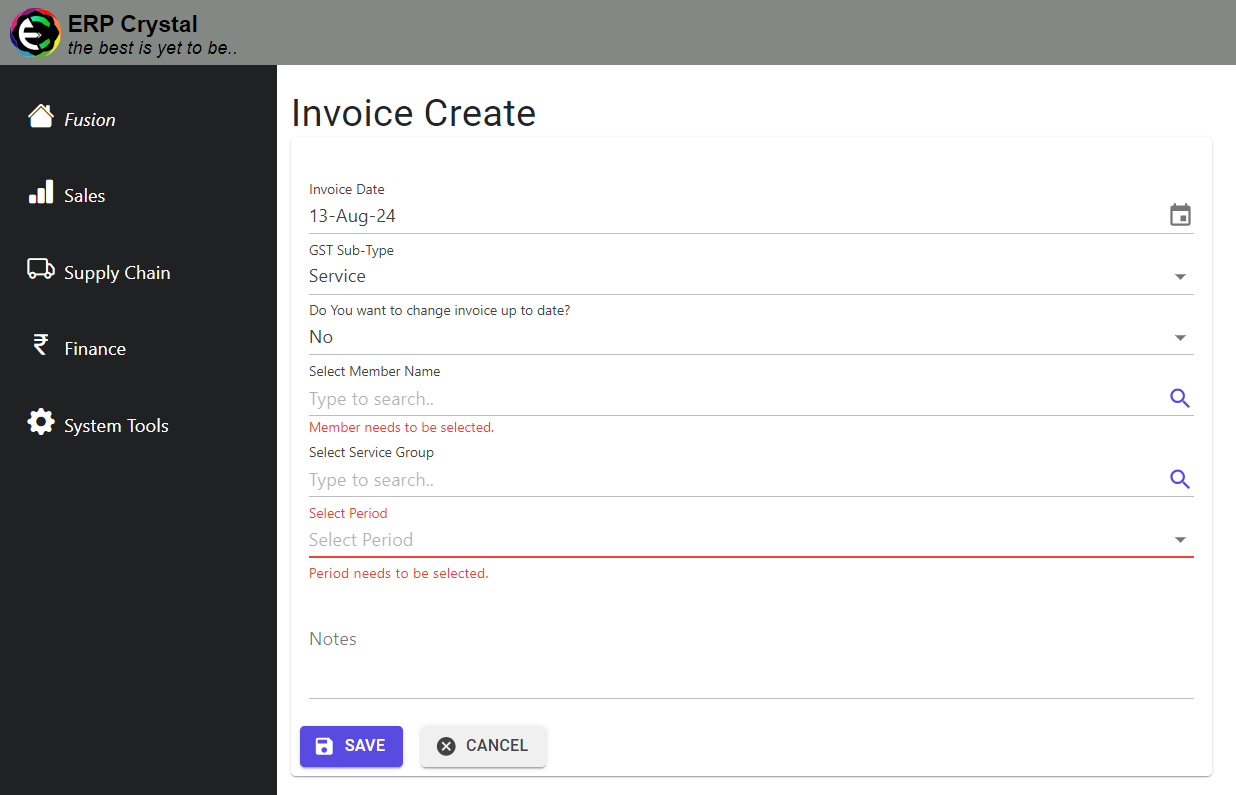
Select Header Info
- Choose the Invoice Date (must be after the previous invoice date).
- Select the GST Sub-Type.
- Search for the Member by Name or Member ID. The system will alert you if the member is suspended.
- Pick a Service Group. The system pre-fetches the total amount.
- Select the Period (Month). For new members, the system can handle partial-month billing automatically.
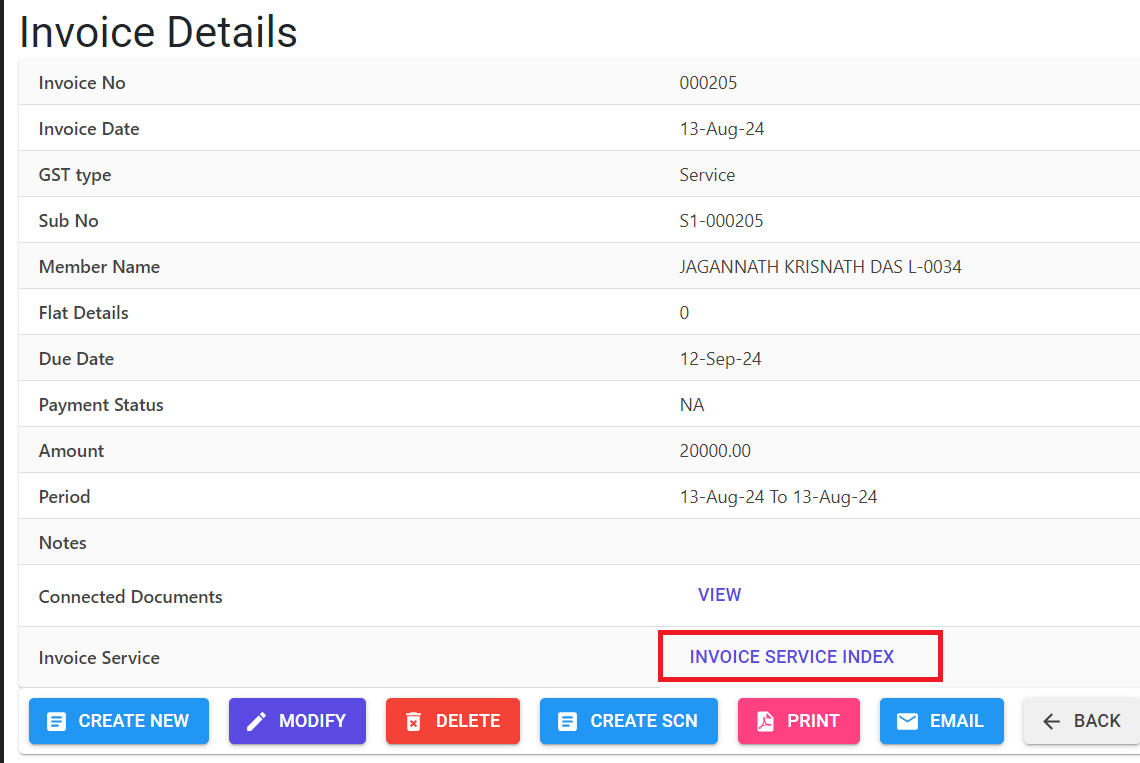
- After saving you can perform the following actions given in the image below:
Review and Save
- Tick “Update Invoice Up To” if this is a regular monthly bill.
- Click Save to generate the document.
Manage Line Items (Optional)
- If needed, go to Inovice Details to add/edit specific lines. The system will prompt you to Recalculator GST if amounts are changed.
5. Validations and Error Handling ⚠️
| Validation Type | What is checked? | Error Message / Action |
|---|---|---|
| Lock Check | If bulk billing or interest generation is already in progress. | “Generate interest / Multiple Invoice are in progress…” |
| Date Range | If date is outside the Financial Year. | “Date must be between [Start] AND [End]” |
| Sequence Check | If invoice date is earlier than the last generated invoice. | “Invoice date must after the Last Invoice Date” |
| Member Status | If the member is marked as “Suspended”. | “Invoice may not be created as Member is Suspended.” |
| Duplicate Bill | If the period is already billed for this member. | “Invoice is already generated up to [Date] for this member.” |
| Zero Amount | If the selected Service Group has 0 amount. | “You may not use this group as service amount is 0.” |
6. Tools / Smart Features 🔧
- 🏠 Flat Details Fetcher: Automatically displays Wing-Bldg-Flat numbers for easier identification.
- 🧮 Partial Month Calculator: If a member joins mid-month, the system pro-rata calculates the maintenance based on total days.
- 🔗 Connected Documents: View all Receipt Vouchers or Credit Notes linked to a specific invoice from the details page.
- 📧 Email Integration: Fetch pre-defined subject lines and messages from Standard Instructions for one-click emailing.
7. Reports Related to Invoices 📊
- 📄 Invoice PDF: The primary billing document for members.
- 📋 Invoice Register: A detailed spreadsheet of all billing transactions.
- ⏳ Outstanding Report: Lists unpaid invoices with aging details.
- 📈 GST Summary: Summarizes CGST/SGST/IGST collected for tax filings.
- 📊 Interest Calculation Sheet: Shows how the penalty interest was computed for each member.
8. Pre-settings / Configurations ⚙️
- 🏢 Entity Master: Society name, address, PAN, and GSTIN must be correct.
- 📑 GST State Master: Ensure State Codes are mapped correctly for IGST vs CGST/SGST logic.
- 🛠️ System Parameters:
InterestInvoicesGeneratedUpto: Controls which months are locked for interest.MultipleInvoiceInProgress: A safety flag to prevent concurrent bulk jobs.
- 📝 Std Instructions: Define footer notes for “Member Type 01”, “Member Type 02”, etc.
9. Best Practices / Tips 💡
ℹ️
- Verify Service Groups: Before bulk billing, double-check that the amounts in Service Group Master are updated.
- Use Bulk Rollback: If you realize a mistake after creating 500 invoices, use the Rollback feature instead of manual deletion.
- Keep Member Status Updated: Ensure ceased or suspended members are marked correctly to avoid billing errors.
- Check Last Invoice Date: Invoices must be created in chronological order to maintain data integrity.
10. Additional Observations 🔍
⚠️
- Amendment Policy: Once an invoice is used in a Receipt or Credit Note, it cannot be modified without reversing the linked transactions.
- Rounding Logic: The system automatically rounds decimals to the nearest Rupee for taxable amounts to simplify payment.
- Concurrent Access: Avoid starting “Multiple Invoice” from two different systems simultaneously to prevent duplicate numbering.