Purchase Bill Management
Purchase Bill - User Guide
⚡ Quick Start: 3-Minute Bill Entry
- Navigate: Go to Supply Chain > Purchase Bill.
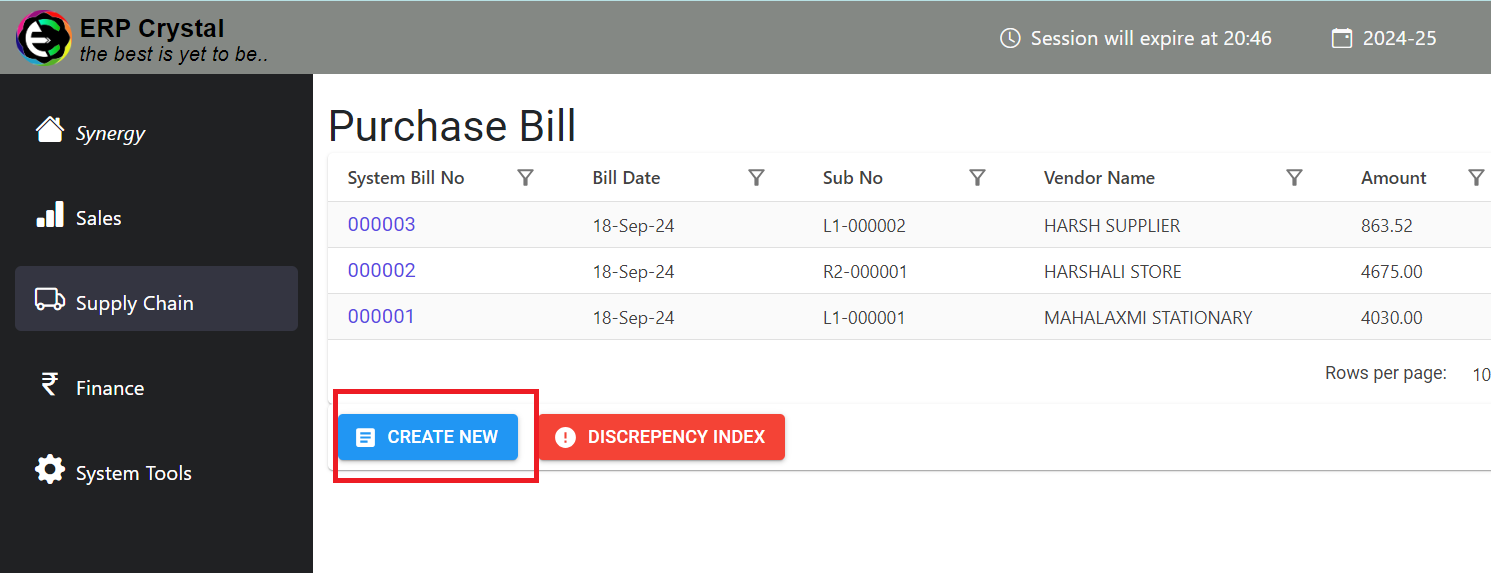
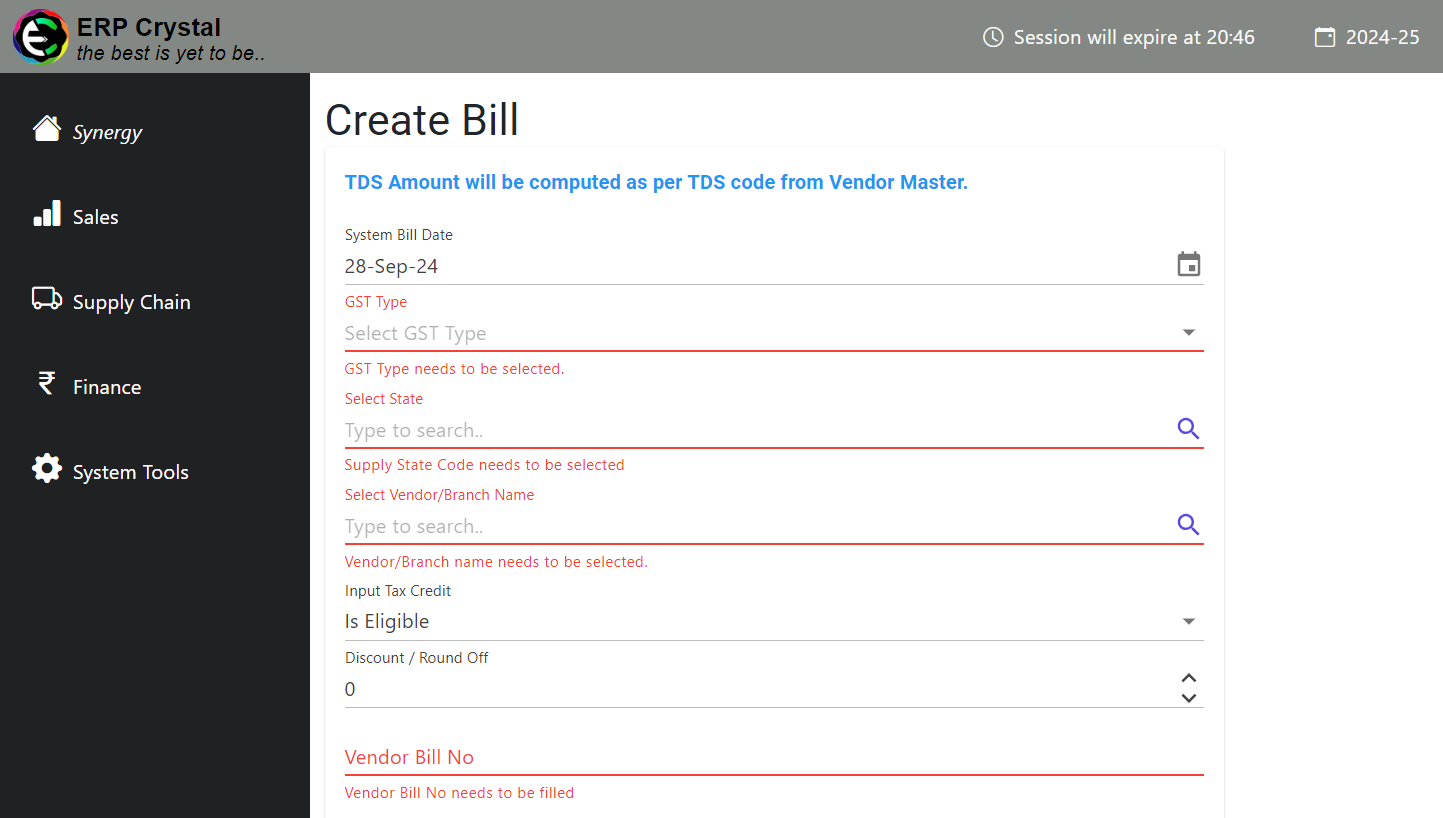
- Bill Details: Enter all the details.
- Taxation: Choose the GST Type (L1-Local, I1-Interstate) and Rate. System auto-calculates SGST/CGST.
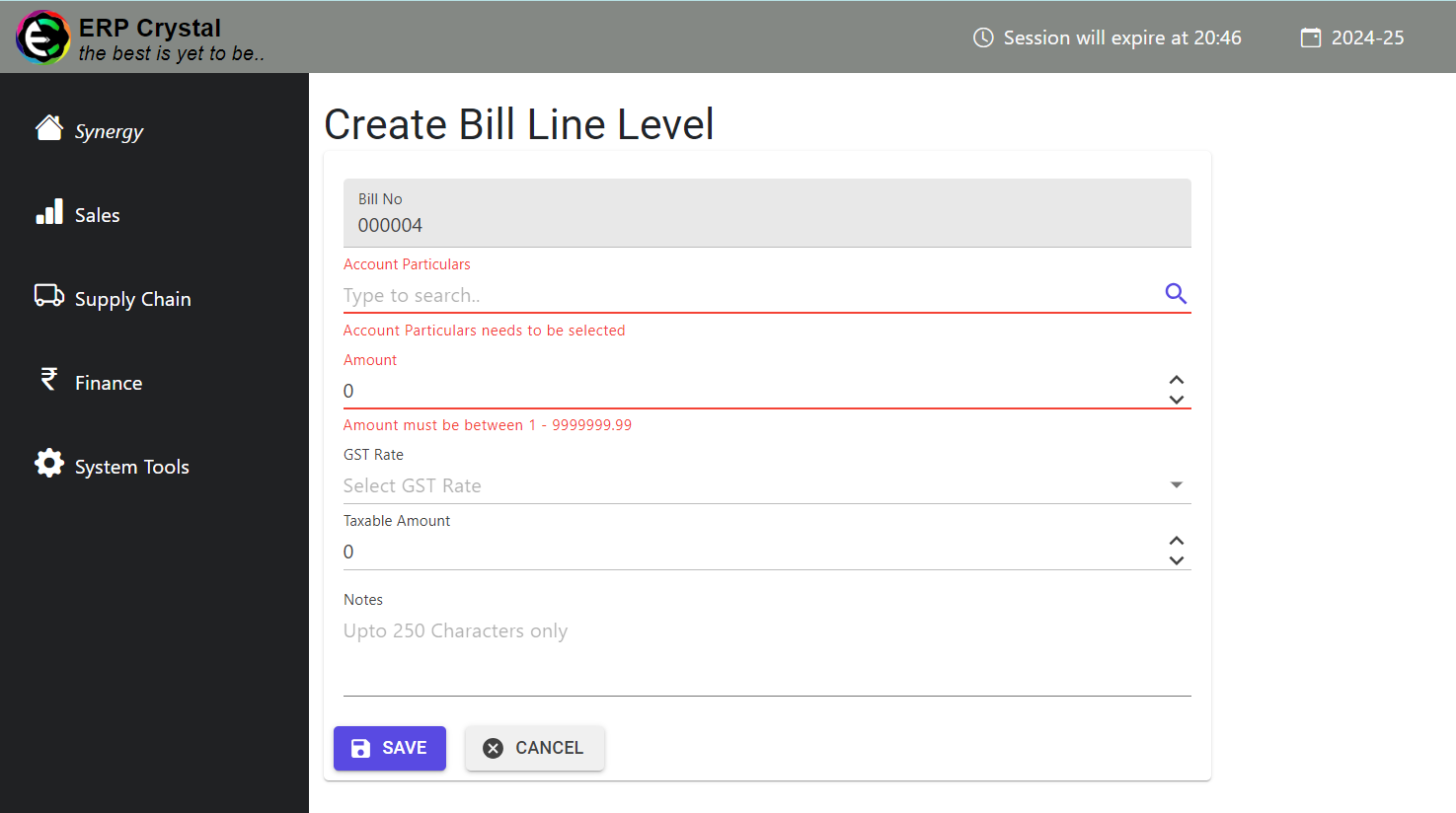
- Purchase Bill Items: Enter all the details required for Item creation
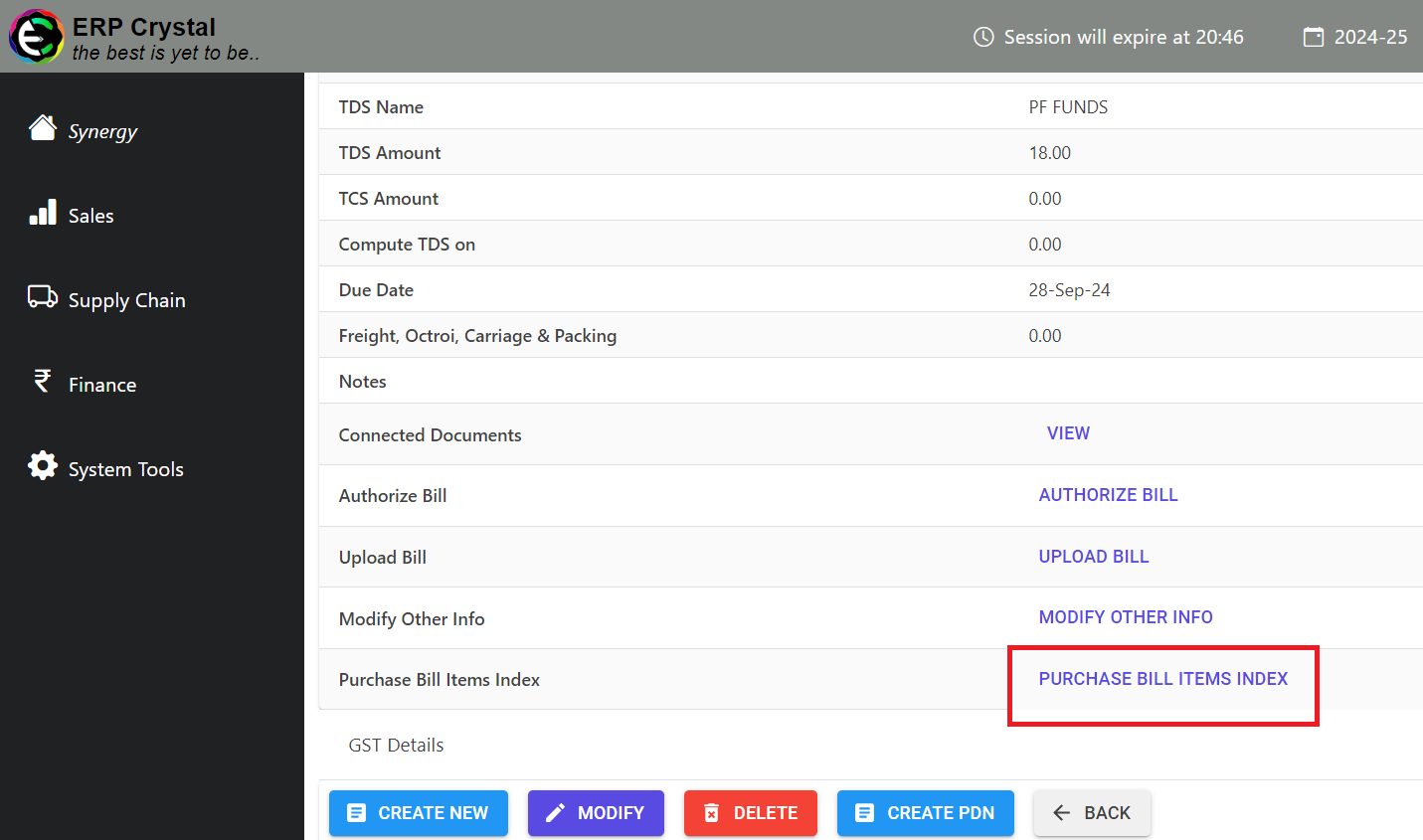
- Save: Click Save. The bill is now ready for authorization.
🗺️ Purchase Workflow
graph LR
    Vendor[Vendor Master] --> Bill[Create Purchase Bill]
    Bill --> Audit[Modify Other Info / GST]
    Audit --> Auth[Authorize Bill]
    Auth --> Voucher[Make Payment Voucher]
    Voucher --> Bank[Bank/Cash Payment]

    style Bill fill:#f0f4ff,stroke:#3b82f6
    style Auth fill:#fffbeb,stroke:#fbbf24
✅ Prerequisites Checklist
- Vendor Master: Vendor must be active with correct GSTIN and Bank/RTGS details.
- Account Master: Appropriate Expense heads (Group 4) must be configured in the Chart of Accounts.
- GST Rate Master: Standard tax rates (5%, 12%, 18%) must be active.
1. Introduction 📝
The Purchase Bill module is used to record all outgoing expenses incurred by the society for services or goods provided by third-party vendors. Unlike Maintenance Invoices (which you send TO members), Bills are what you receive FROM providers (e.g., security agencies, lift maintenance, utility companies).
Core Features:
- Handles Multi-Level Taxes: CGST, SGST, IGST, and TDS.
- Supports Authorization Workflow: Bills must be authorized before a payment voucher can be created.
- Integrated Document Management: Upload a PDF/Image scan of the physical bill for easy retrieval.
2. Advanced Features 🛠️
🔒 Authorization & Revocation
To maintain financial control, the system requires a “Two-Step” process:
- Creation: A clerk enters the bill details.
- Authorization: A manager or treasurer reviews the bill and clicks Authorize.
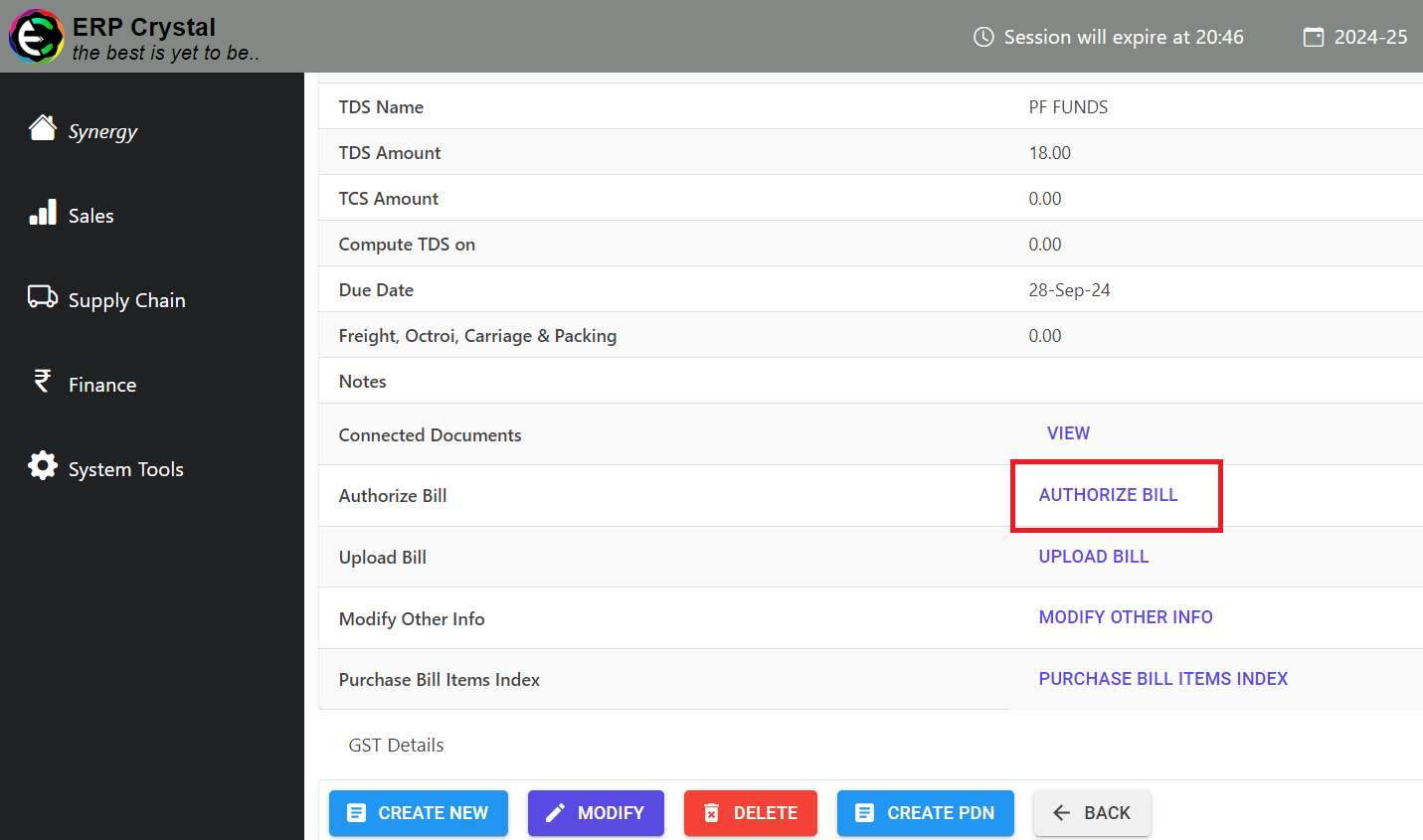
- Note: Unauthorized bills cannot be paid via vouchers.
💸 Integrated TDS Management
The system automatically fetches the TDS Section and Rate configured in the Vendor Master. This ensures that the society remains compliant with income tax regulations by deducting the correct percentage before paying the vendor.
🔄 Bill Duplication
For recurring monthly expenses (like fixed security contracts), use the Duplicate Bill feature. The system copies all line items and account mappings, allowing you to just update the date and bill number.
3. GST & Compliance ⚖️
The system tracks every bill for GST compliance:
- ITC Eligibility Status: Mark if the bill is “Is Eligible” or “Not Eligible” for Input Tax Credit.
- GSTR-2B Integration: Record the date when the vendor’s invoice appeared in your GSTR-2B portal to ensure you only claim credits for filed invoices.
- Supply State Mismatch: System alerts you if the vendor’s GSTIN state does not match the Supply State selected in the bill.
4. Validations & Error Handling ⚠️
| Validation Type | Logic | Action |
|---|---|---|
| Duplicate Bill No | If the same Vendor Bill No is entered for the same vendor twice. | Alert: Show the previous bill details with a warning. |
| Date Lock | Bill date must be after the last recorded bill. | Warning: “Bill date must be after the Last Bill Date.” |
| Amount Mismatch | Total of line items (Lines amt) != System Bill Amount. | Warning: Difference Alert in red. Blocks authorization. |
| Future Dating | Bill date cannot be in the future. | Calendar prevents future date selection. |
5. Linked Transactions 🔗
From the Bill Details screen, you can:
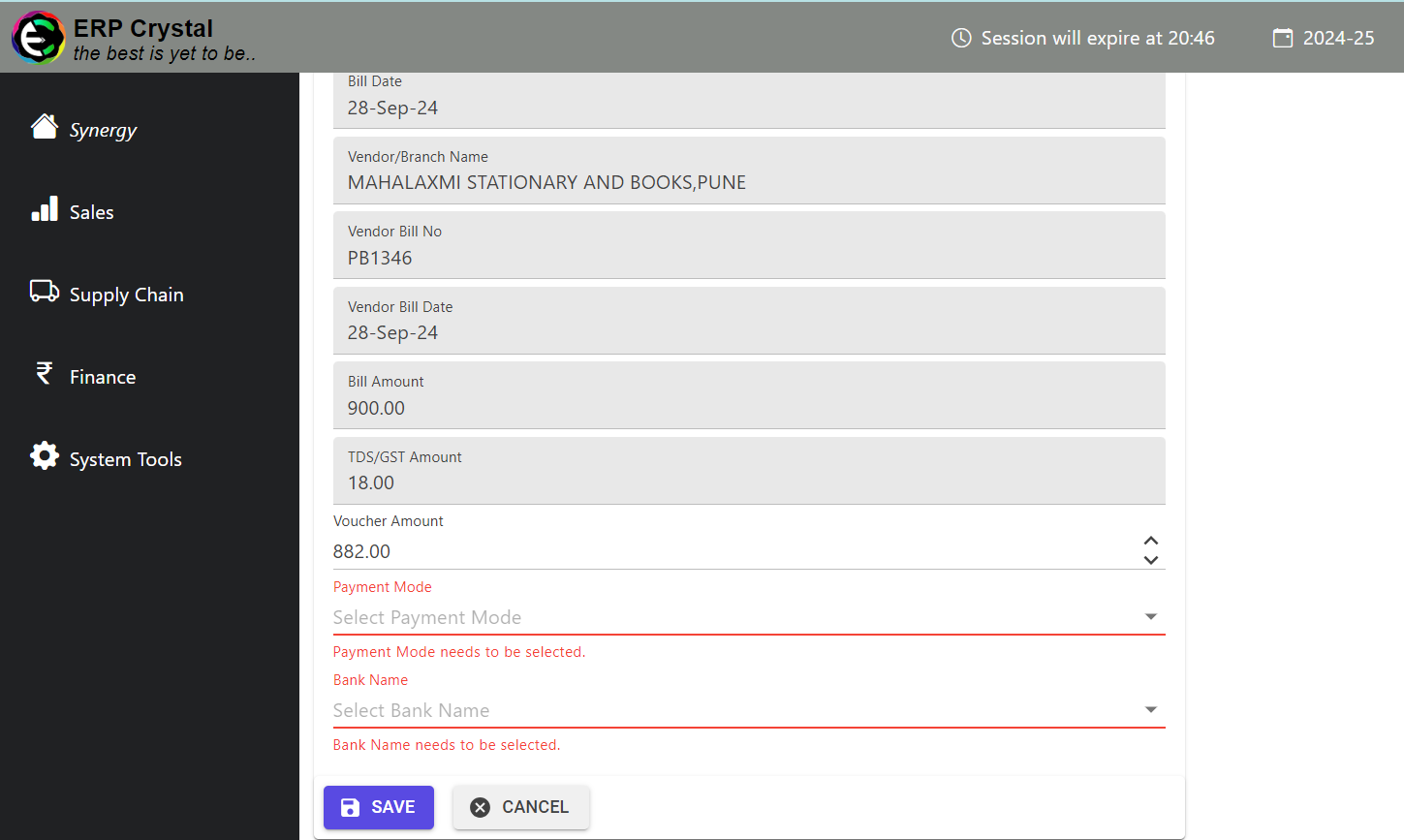
- 📁 Make Voucher: Directly create a Payment Voucher (Cheque/Bank Transfer).
- ➖ Create PDN: Create a Debit Note if you need to return goods or adjust the bill downwards.
- ☁️ Connected Docs: View all Journal Vouchers or Payment Vouchers linked to this specific bill.
6. Tips for Accuracy 💡
- Check Bank Balance: When creating a voucher from a bill, the system will alert you if your Bank/Cash balance is insufficient.
- Use Notes: Always record specific project names or work orders in the Notes field for easier searching later.
- Review TDS Type: If a vendor is not registered for GST (URP), ensure they have the correct TDS code for “Professional” or “Contractor” services.