How to Make Multiple Invoice
Overview
This guide provides a quick step-by-step process for How to Make Multiple Invoice.
Step 1: Navigate to the Sales Module
Click on Make Multiple Invoice
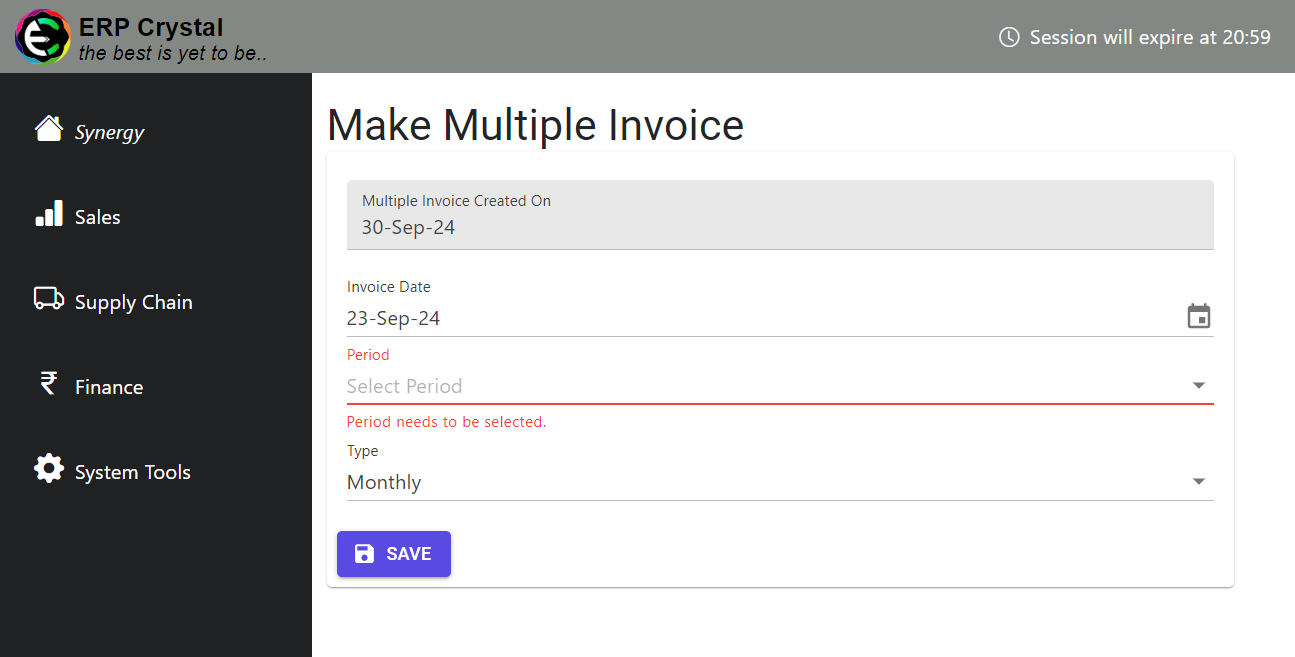
Step 2: Key in values for Make Multiple Invoice
Ensure the following details are correctly entered before proceeding:
- Invoice Date : Select an invoice date that falls within the current financial year.
- Unlinked Members: If any members are not linked to a service group, the system will prompt you to resolve this issue before proceeding.
- Interest Invoice Check: If any other process, such as generating interest invoices, is currently running, the system will prevent invoice creation. You’ll need to wait until the process is complete before continuing. Once all details are validated, click Save to generate the invoices.