E-Vault
E-Vault Module - User Guide
📈 Business Impact
The E-Vault module is your society’s “Digital Safe Deposit Box.” Centralizing legal documents, certificates, and insurance policies ensures zero data loss during leadership transitions and prevents legal penalties by providing automated alerts for document renewals and expirations.
⚡ Quick Start: 2-Minute Fast Track
For administrators archiving their first document:
- Details: Click Create, enter the Document No (e.g., Policy ID), Name, and Description.
- Track: Set the Valid Upto date for any document that requires renewal (e.g., AMC or Insurance).
- Upload: In the Vault Details, click Upload Document to attach the digital file (PDF/Image).
- Archive: The document is now securely stored and can be downloaded by authorized users anytime.
🗺️ Documentation Lifecycle
graph LR
    Master[Doc Category] --> Entry[Create Metadata Entry]
    Entry --> Upload[Upload Digital File]
    Upload --> Monitor[Track Validity/Expiry]
    Monitor --> Download[Retrieve as Needed]
    Monitor --> Renewal[Re-upload Fresh Version]

    style Entry fill:#f9f,stroke:#333,stroke-width:2px
✅ Prerequisites Checklist
Before populating your digital vault, ensure:
- Physical Scan: High-quality scans of original documents are ready (PDF format recommended).
- Naming Standard: Decide on a consistent naming convention (e.g.,
YYYY_Insurance_Policy). - Expiry Awareness: Have renewal dates ready for certificates and insurance policies.
1. Introduction 📝
The E-Vault module is a specialized Document Management System (DMS) designed for housing societies. It moves critical society records from dusty physical files to a secure, organized digital environment.
Core Functionality:
- It provides a Secure Repository for all official society documents.
- It features Expiry Management, helping users track when a document (like a Lift License or Fire Audit) is about to expire.
- It supports Multi-format Retrieval, allowing you to store PDFs, Excel sheets, and Images.
2. Managing the Vault 🚀
Accessing the Module
Navigate to System Tools > E-Vault.
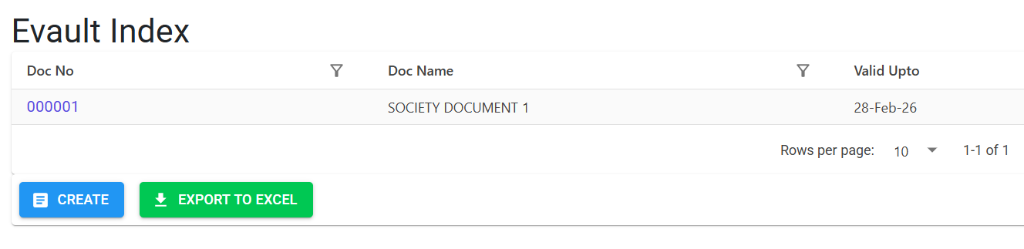
- Evault Index: A searchable list of all archived documents.
- Create New: Interface to add a new document record.
The Index Page
The Index Page gives you a bird’s-eye view of your document library. You can:
- Search by Name/No: Instantly find a specific policy or certificate.
- Monitor Expiry: The “Valid Upto” column highlights when documents need attention.
- Excel Export: Download a full inventory of the society’s digital assets.
3. Features ✨
The E-Vault is designed for security and long-term organizational knowledge:
- 📄 Multi-Format Support: Securely store and retrieve PDFs, XLSX (Excel), PNG/JPG (Images), and DOCX (Word) files.
- 🛡️ Version Control (Re-upload): When a document is renewed (e.g., Insurance Policy for next year), use the “Re-upload” feature to update the file while keeping the history intact.
- ⏳ Validity Tracking: Record expiry dates to ensure the society never misses a legal audit or renewal deadline.
- 📁 Centralized Archive: Prevents “Knowledge Loss” when committee members or managers change. The vault remains the single source of truth.
- 📦 Metadata Storage: Store not just the file, but also its description and reference numbers for easier searching.
- 📥 Quick Retrieval: Authorized users can download any document with a single click.
4. Interface Walkthrough 🔄
Evault Index
The Index Page acts as your digital filing cabinet. It provides an organized view of all society records, categorized by document number and name.
- Instant Retrieval: Use global filters to locate specific certificates or policies.
- Metadata Oversight: Monitor document validity and expiry dates directly from the main list.
Evault Details Screen
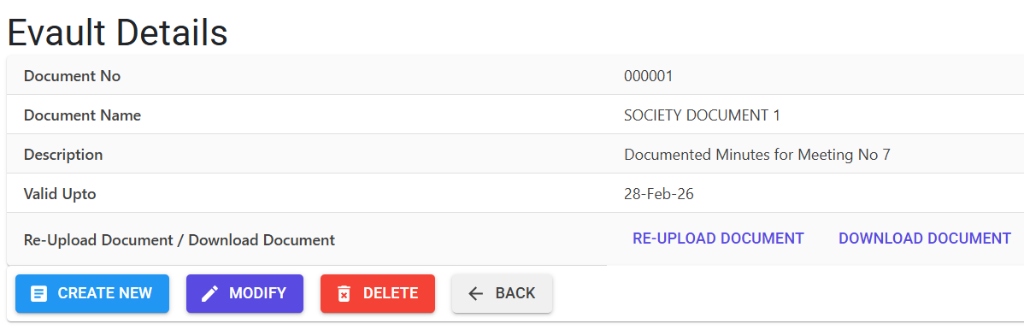
The Details View manages the lifecycle of a single document, from initial archiving to eventual renewal.
- Lifecycle Management: Access “Re-upload” functionality for renewing expiring documents while keeping the reference number.
- Secure Access: Download the official document or modify metadata to keep records accurate.
5. Complete Flow 🔄
Record Metadata
- Enter the Document Number (e.g., Policy Number).
- Provide a descriptive Document Name (e.g., “Fire Safety Certificate 2024”).
- Add a detailed Description of what the document covers.
Set Expiry (Optional)
- If the document is time-sensitive, pick the Valid Upto date.
- This date is visible on the main index for easy monitoring.
Upload the File
- From the Details Page, click Upload Document.
- Select your file. The system will automatically rename it based on the Document Number for consistency.
Review and Access
- Once uploaded, the “Download” button becomes active.
- Verify the file by downloading it once to ensure it was uploaded correctly.
6. Validations and Error Handling ⚠️
| Validation Type | What is checked? | Error Message / Action |
|---|---|---|
| File Check | If a file already exists for a Doc No during upload. | Displays “Re-upload” instead of “Upload”. |
| Delete Permission | Ensures only authorized users can remove records. | Role-based “Access Denied” if unauthorized. |
| Missing Metadata | Missing Doc Name or Number. | Red validation text appears on the create screen. |
| Empty File | If trying to download a record before a file is uploaded. | The “Download” link will not appear. |
7. Tools / Smart Features 🔧
- 🏠 Auto-Naming Engine: To keep your server organized, the system automatically renames files using the Document Number (e.g.,
EXP_001.pdf). - 📊 Audit Inventory: Use the Export to Excel tool to generate a “Document Audit Report” showing all society documents and their validity statuses.
- 📂 Sub-Folder Organization: Documents are stored in a dedicated
Evaultsub-folder on the server for security and easy backup.
8. Reports Related to E-Vault 📊
- 📄 E-Vault Inventory: A spreadsheet of all files currently in the digital safe.
- 📋 Expiry Alert Report: Highlights documents expiring within the next 30, 60, or 90 days.
9. Best Practices / Tips 💡
- Use PDF Primarily: This is the most stable format for long-term archival. Avoid using images for multi-page documents.
- Set Renewal Dates Early: For insurance, set the “Valid Upto” date to 15 days before the actual expiry to give the committee time for processing.
- Clear Descriptions: Don’t just name a file “Certificate”. Use “Certificate of Completion - Water Tank Repair Oct 2023” for better clarity.
- One Record, One Document: If an insurance policy has 5 sections, merge them into one PDF before uploading.
10. Additional Observations 🔍
- Permanent Deletion: Use the Delete function with caution. Deleting a record also removes the physical file from the server.
- Large Files: For extremely large videos or high-res maps, consider compressing them to ensure fast downloads.
- Confidentiality: Ensure that sensitive documents (like salary slips) are only uploaded if the user group permissions are correctly configured.