Sales Credit Note (SCN)
Sales Credit Note (SCN) - User Guide
ℹ️
⚡ Quick Start: 3-Minute Credit Note
- Navigate: Go to Sales > Sales Credit Note.
- Link Invoice: Search for the Invoice Number you wish to credit.
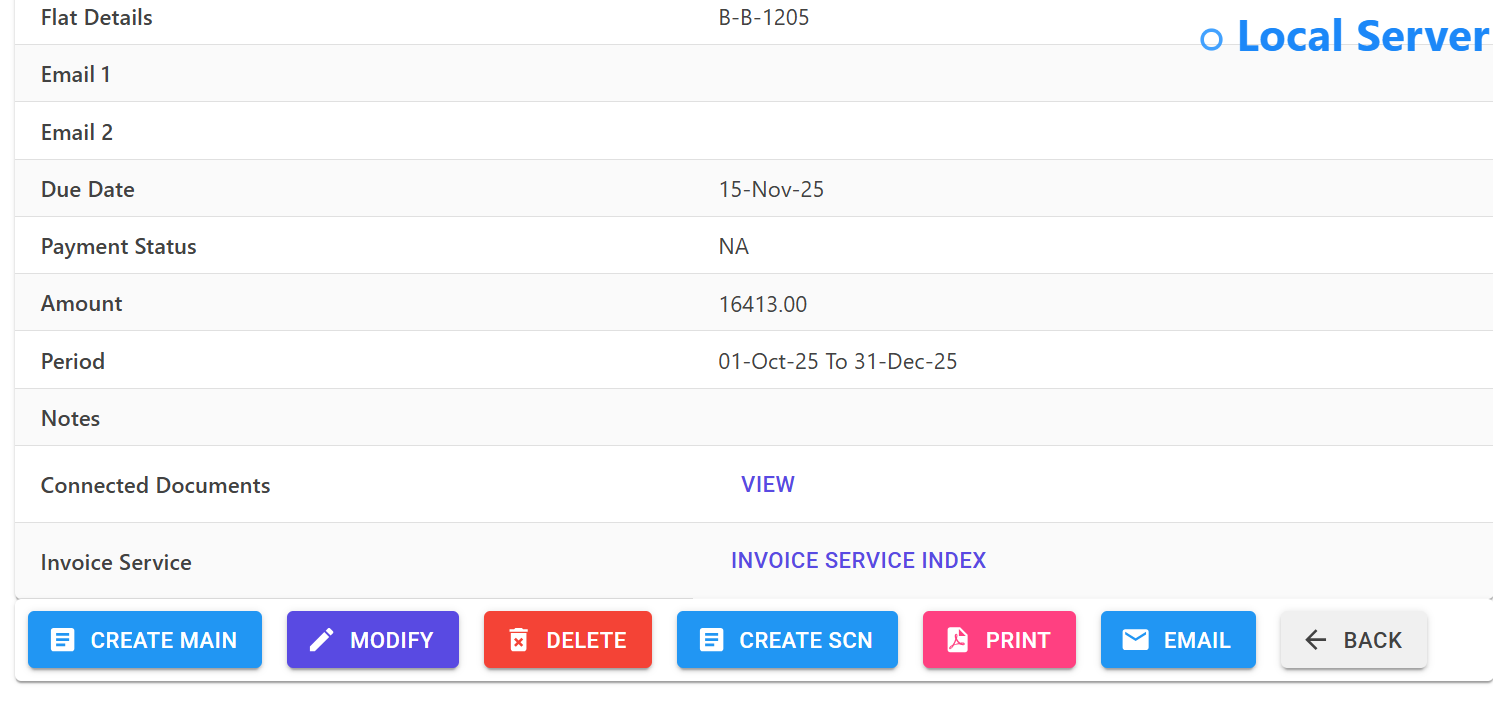
- Check Credit Year: Pick the Credit Note Year.
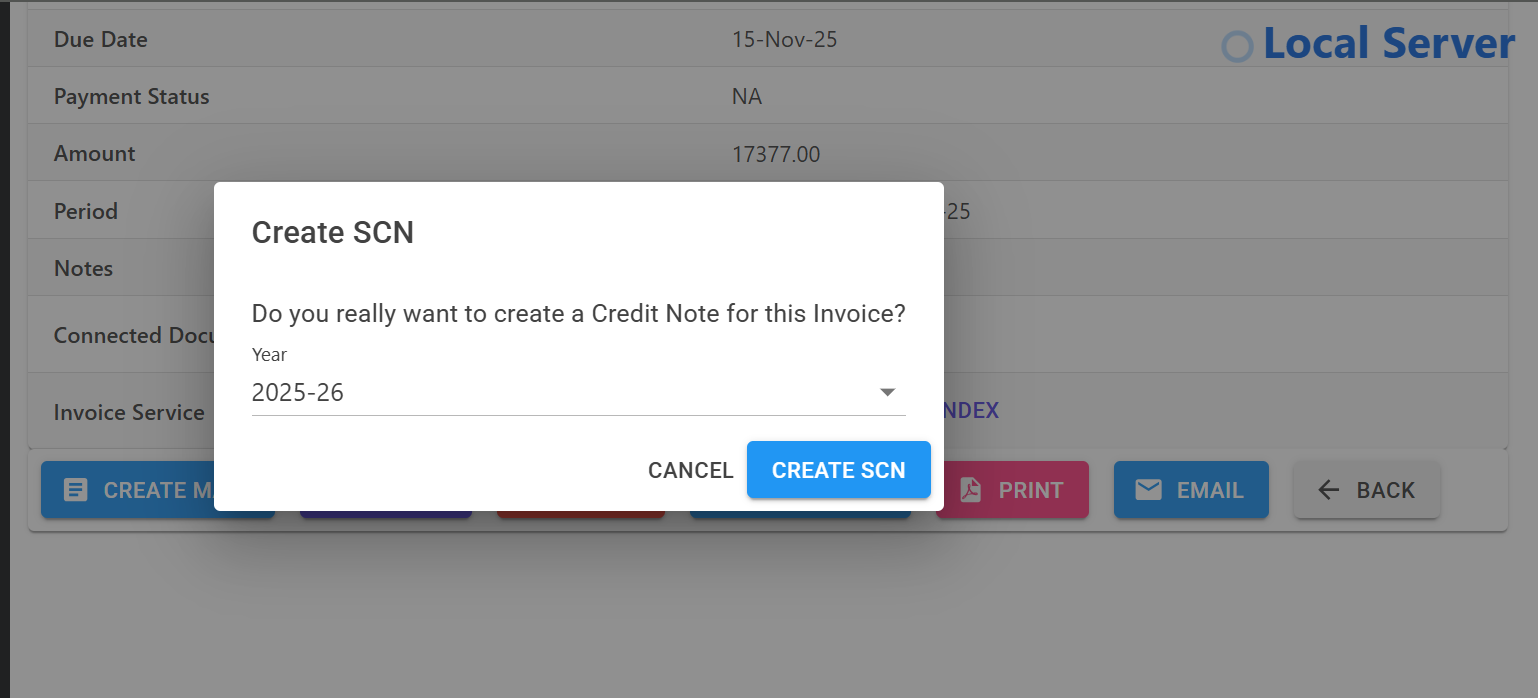
- Review: Click Create SCN
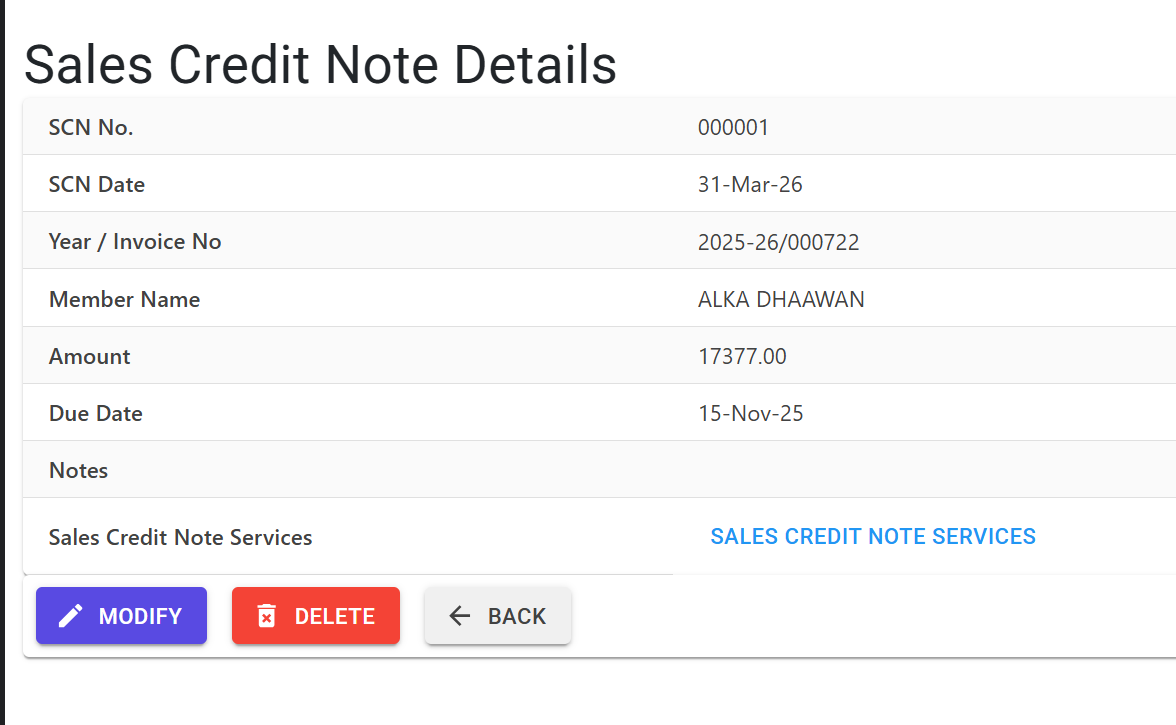
🗺️ Credit Note Process
graph LR
    Invoice[Invoice Exists] --> Select[Link Invoice to SCN]
    Select --> Adjustment[Partial/Full Adjustment]
    Adjustment --> GST[Auto-Recalculate GST]
    GST --> Save[Save & Print SCN]
    Save --> Bal[Member Balance Updated]

    style Select fill:#f0f4ff,stroke:#3b82f6
    style Adjustment fill:#fffbeb,stroke:#fbbf24
✅ Prerequisites Checklist
- Linked Invoice: You must have a valid YearInvoiceNo to create an SCN.
- Financial Year: The SCN date must be within the active financial year’s range.
- Reason for Credit: Common reasons like “Billing Error” or “Discount” should be documented in the Notes section.
1. Introduction 📝
A Sales Credit Note (SCN) is issued to a member to reduce the amount they owe for a specific invoice. This is commonly used for billing errors, waivers, or service-related adjustments.
ℹ️
Core Logic:
- Any SCN issued directly reduces the Outstanding Balance of the member.
- In the GST Summary, these issued credit notes are subtracted from the total sales to calculate Net Taxable Value.
- The system automatically generates a unique
SCN NoandYearSCNNofor each transaction.
2. Advanced Features ✨
🧮 Automatic GST Recalculation
When you adjust the base amount of a credit note, the system automatically:
- Deletes old tax lines (CGST/SGST/IGST).
- Re-calculates taxes based on the Tax Group of the original service.
- Ensures the total credit note amount is inclusive/exclusive of taxes as per the original invoice settings.
🔗 Invoice Linkage
Each SCN is hard-coded to a specific invoice. This allows you to:
- View the Source Invoice directly from the SCN detail screen.
- Prevent over-crediting (you cannot credit back MORE than the original invoice amount).
- Track Reference Date and Reference Number for tax reporting.
3. Validations & Error Handling ⚠️
| Validation Type | Logic | Action |
|---|---|---|
| Max Amount | SCN Line Amount > Invoiced Amount. | Error: “Credit Note Amount cannot be more than Invoiced Amount”. |
| Date Range | SCN date falls outside the Financial Year. | Warning: “Date must be between [Start] AND [End]”. |
| Recalculation Required | If a line is modified. | System automatically runs the SCNComputeAmount logic. |
| Deletion Audit | To delete an SCN. | A mandatory Delete Reason must be provided for logs. |
4. Reports Related to SCN 📊
- 📄 SCN PDF: A formal document that can be shared with the member as proof of credit.
- 📋 Sales Credit Note Register: A list of all credit adjustments made over a specific period.
- 📉 Member Statement: SCNs appear as “Credit” entries, reducing the total “Balance Due”.
5. Tips for Accuracy 💡
ℹ️
Best Practices
- Keep Notes Detailed: Future auditors will look at the
Notesfield to understand why a credit was issued. - Match Dates: Try to issue the SCN in the same month as the original invoice for easier GST reconciliation.
- Review Tax Types: Ensure the SCN uses the correct GST type (Z1 for regular, others for GST-exempted services).