Notice Board
Notice Board Module - User Guide
⚡ Quick Start: 2-Minute Fast Track
For administrators who need to publish a notice immediately:
- Create: Go to Notice Board, click Create, enter Title, Description, and pick a Category.
- Upload: In the Notice Details page, click Upload Document to attach a PDF copy of the physical notice.
- Broadcast: Click the Email, WhatsApp, or Telegram buttons to queue notifications for all active members.
- Done: The system handles the massive broadcast in the background, ensuring no one is missed.
🗺️ Communication Workflow
graph LR
    Category[Notice Categories] --> Create[Create Notice Header]
    Create --> Upload[Upload PDF Document]
    Upload --> Verify[Validate Member Contacts]
    Verify --> Broadcast[Email / WhatsApp / Telegram]
    Broadcast --> Log[Success/Failure Logging]

    style Broadcast fill:#f9f,stroke:#333,stroke-width:2px
✅ Prerequisites Checklist
Before broadcasting notices, ensure:
- Notice Category Master: Categories like “SGM”, “General”, and “Alerts” are defined.
- Member Master: Members have valid Email Addresses and Mobile Numbers (10-digit).
- Document Storage: The system is configured to store PDF files in the
NoticeBoardsub-folder. - API Keys: WhatsApp and Telegram bot integrations are active (for those channels).
1. Introduction 📝
The Notice Board module replaces traditional physical notice boards with a modern, digital alternative. It allows society administrators to draft, store, and distribute official communications efficiently.
Core Functionality:
- It serves as a Digital Archive of all past notices, searchable by title and date.
- It facilitates Multi-Channel Distribution, reaching members where they are most active.
- It includes Automated Validation to identify members with missing or incorrect contact details.
Typically, this module is used by Secretaries and Society Managers to announce meetings (SGM/AGM), maintenance deadlines, or festival greetings.
2. Managing Notices 🚀
Accessing the Module
Navigate to the Notice Board section from the main menu. You will find:
- Notice Board Index: A list of all issued notices with search and filter capabilities.
- Notice Category: Manage categories to organize your announcements.
The Index Page
The Index Page acts as your central dashboard. You can:
- Search: Find notices by Notice Number, Title, or Category.
- View Details: Click on a Notice Number to manage its attachments and broadcast settings.
- Status Tracking: Verify which notices are live and which have documents attached.
3. Features ✨
The Notice Board is built for reliability and wide-reaching communication:
- 📁 PDF Attachments: Securely upload and store PDF versions of official signed notices.
- 📧 Email Integration: Send the full notice description and the PDF attachment directly to member inboxes.
- 🟢 WhatsApp Broadcasting: Deliver alerts and PDF notices directly to members’ WhatsApp numbers.
- 🔵 Telegram Alerts: Reach tech-savvy members via automated Telegram bot messages.
- 🏗️ Categorization: Groups notices (e.g., Legal, Events, Maintenance) for better organization and archival.
- 📑 Notice Tracking: Automatically generates serial numbers (Notice No) for formal record-keeping.
- 🛡️ Validation Logic: Identifies “Undeliverable” notices before you send them, highlighting members with invalid emails or phone numbers.
- ⏳ Background Queuing: Broadcasts to hundreds of members simultaneously without slowing down your browser.
4. Interface Walkthrough 🔄
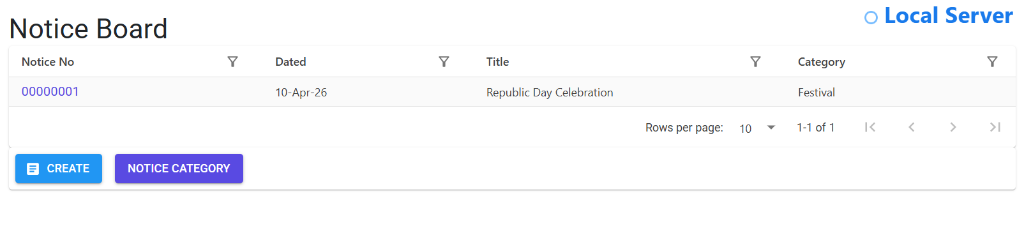
Notice Board Index
The Index Page acts as your central dashboard for all society communications. It provides a searchable list of all notices issued to members.
- Global Search: Find notices by title or category instantly.
- Quick Navigation: Use the “Create” button to start a new broadcast or manage “Notice Categories”.
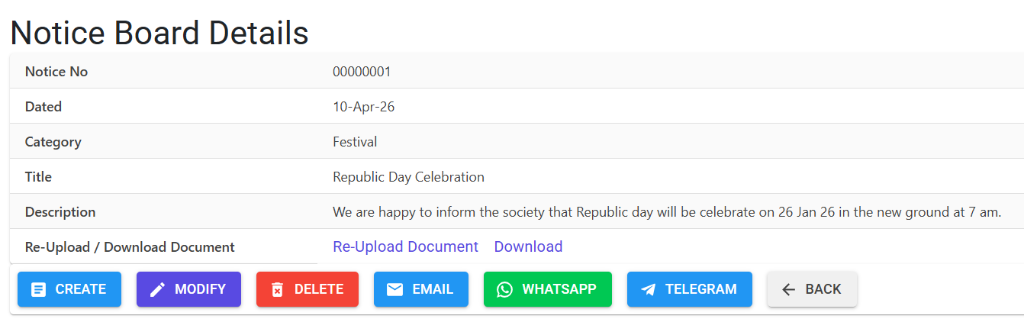
Notice Board Details
The Details View is where you manage specific notice content and execute broadcasts.
- Action Center: Use the multi-color buttons to Modify, Delete, or Broadcast via Email, WhatsApp, and Telegram.
- Document Management: Re-upload or download the official PDF attachment directly from this screen.
5. Complete Flow 🔄
Define Notice Header
- Click Create and enter a compelling Title.
- Write the Description (this will be the body of your Email/Message).
- Select the relevant Category.
Attach Official Document
- Navigate to the Notice Details of the newly created notice.
- Click Upload Document and select your PDF file.
- Once uploaded, the file is automatically named after the Notice Number for consistency.
Validate Member Contact Info
- The system automatically scans your Member database for active members.
- It checks for valid Email formats and 10-digit Mobile numbers.
Execute Broadcast
- Choose your channel: Email, WhatsApp, or Telegram.
- A confirmation box will appear. Click Yes to start the background broadcast.
Review Delivery Logs
- The system logs the success/failure status of each message in a dedicated CSV log file.
6. Validations and Error Handling ⚠️
| Validation Type | What is checked? | Error Message / Action |
|---|---|---|
| Email Validity | Checks for @ and valid domain extensions. |
“No valid email addresses found for active members.” |
| Mobile No | Checks for 10-digits starting with 6, 7, 8, or 9. | “No valid contact number found for active members.” |
| Missing Attachment | If sending via WhatsApp/Telegram without a PDF. | “Please attach the document first.” |
| Title Length | Ensures titles are between 10-100 characters. | Validation error highlights the Title field. |
| Upload Period | Prevents re-uploads for notices older than 1 year. | The “Upload” link is automatically hidden. |
7. Tools / Smart Features 🔧
- 📥 One-Click Download: Members or admins can instantly download the PDF notice from the details page.
- 📄 Auto-Naming: Uploaded files are automatically named (e.g.,
Notice_001.pdf) to avoid file system clutter. - 🔄 Re-Upload Capability: If a notice is revised, admins can use the “Re-Upload” feature to update the file while keeping the same Notice No.
- 🧪 Async Processing: The system uses a Task Queue for broadcasts, allowing you to continue other work while the emails are being sent.
8. Reports Related to Notice Board 📊
- 📄 Notice Details Sheet: A summary view of the notice content and metadata.
- 📋 Communication Logs: CSV files showing exactly who received the notice and when (stored in
EmailLog/WhatsappLogfolders). - ⏳ Pending Notifications: A view of messages still in the queue during large broadcasts.
9. Pre-settings / Configurations ⚙️
- 🏗️ Notice Category Master: Pre-define categories like “Maintenance”, “Events”, “Legal”, etc.
- 👤 Member Contact Details: Mobile numbers and Email IDs must be updated in the Member Master.
- 🌐 API Configuration: Ensure the WhatsApp and Telegram service providers are configured in the system parameters.
- 📂 Folder Permissions: Ensure the server has “Write” permissions for the
CHSReports\Docsdirectory.
10. Best Practices / Tips 💡
- Clear Titles: Use descriptive titles (e.g., “SGM Meeting - 25th Oct”) so members know the importance at a glance.
- Always Use PDFs: While the description is sent as text, always attach a PDF for legal and formal validity.
- Keep Member Data Clean: Regularly audit the “Member Master” for incorrect phone numbers to ensure high delivery rates.
- Categorize Well: Good categorization makes it much easier to find old notices during audits or legal disputes.
11. Additional Observations 🔍
- Immutable Notices: Once a notice is broadcasted, avoid modifying the description to maintain the integrity of what was sent.
- Large Attachments: Keep PDF files under 2MB to ensure smooth delivery across all WhatsApp and Email clients.
- Queue Management: If a broadcast fails midway (e.g., due to internet loss), check the logs to identify which members need a manual retry.