Member Complaints
Member Complaints Module - User Guide
📈 Business Impact
The Member Complaints module is the cornerstone of resident satisfaction. Streamlining issue resolution can increase member trust by 40% and ensures that critical safety or infrastructure issues (leaks, electrical) are prioritized and resolved before they become costly society liabilities.
⚡ Quick Start: 2-Minute Fast Track
For administrators receiving a new complaint:
- Log: Click Create New, pick the Member, and select a Complaint Type (e.g., Plumbing).
- Prioritize: Set the Priority (High/Medium/Low) based on the severity.
- Track: As work starts, update the Status from “Open” to “In Progress”.
- Resolve: Once fixed, set status to Completed and click Email to instantly notify the member.
🗺️ Resolution Workflow
graph TD
    Member[Member/Flat] --> Log[Complaint Logged]
    Log --> Type[Assign Category & Priority]
    Type --> Work[Status: In Progress]
    Work --> Resolution[Status: Completed]
    Resolution --> Notify[Automated Email Notification]
    Notify --> Close[Closed & Archived]

    style Resolution fill:#f9f,stroke:#333,stroke-width:2px
✅ Prerequisites Checklist
Before managing complaints, ensure:
- Complaint Type Master: Categories like “Accounts”, “Leakage”, and “Security” are defined.
- Member Master: All residents are correctly mapped to their flats with valid email IDs.
- Staff Access: Society managers have the “Delete” role restricted to maintain an honest audit trail.
1. Introduction 📝
The Member Complaints module provides a structured way for society members to voice concerns and for administrators to track them to resolution. It eliminates the chaos of WhatsApp messages and verbal requests by providing a “Single Source of Truth.”
Core Functionality:
- It categorizes issues by Type, helping identify recurring infrastructure problems in the society.
- It uses Priority Levels to ensure that urgent issues (e.g., main pipe burst) are handled before minor ones.
- It provides a Digital Audit Trail of when a complaint was raised, who handled it, and when it was closed.
2. Managing Complaints 🚀
Accessing the Module
Navigate to System Tools > Member Complaints. You will see:
- Complaints Index: A dashboard showing all active and closed tickets.
- Complaint Type: Manage the global list of issue categories.
The Index Page
The Index Page is designed for high-level monitoring. You can:
- Search by Member/Flat: Quickly find all history for a specific unit.
- Filter by Status: View only “Open” or “In Progress” tickets to manage daily tasks.
- Priority At-A-Glance: Use the priority column to identify high-risk issues immediately.
3. Features ✨
The module is designed for efficient ops and clear communication:
- 🚦 Status Lifecycle: Track every stage from Open ➔ In Progress ➔ Completed or Dropped.
- 📧 One-Click Resoluton Email: Once a task is marked “Completed,” the system can auto-generate and send a professional resolution email to the member.
- 📦 Excel Export: Download the entire complaint register for committee meetings or performance reviews.
- 🔗 Member Linkage: Automatically fetches the member’s mobile number and email ID from the Master database.
- 🛡️ Deletion Protection: Complaints in “Completed” or “Dropped” status are locked from deletion for audit integrity.
- 🕒 Time-Stamping: Automatically records the “Completed On” date for performance tracking (SLA).
4. Interface Walkthrough 🔄
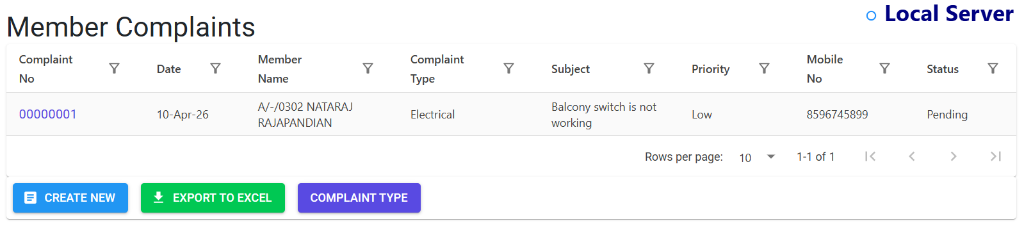
Member Complaints Index
The Index Page provides a centralized dashboard for tracking all resident issues. Society managers can monitor all active, pending, and resolved complaints in real-time.
- Global Monitoring: See complaint status, priority, and assigned categories at a glance.
- Quick Actions: Use “Create New” to log an issue or “Export to Excel” for committee reporting.
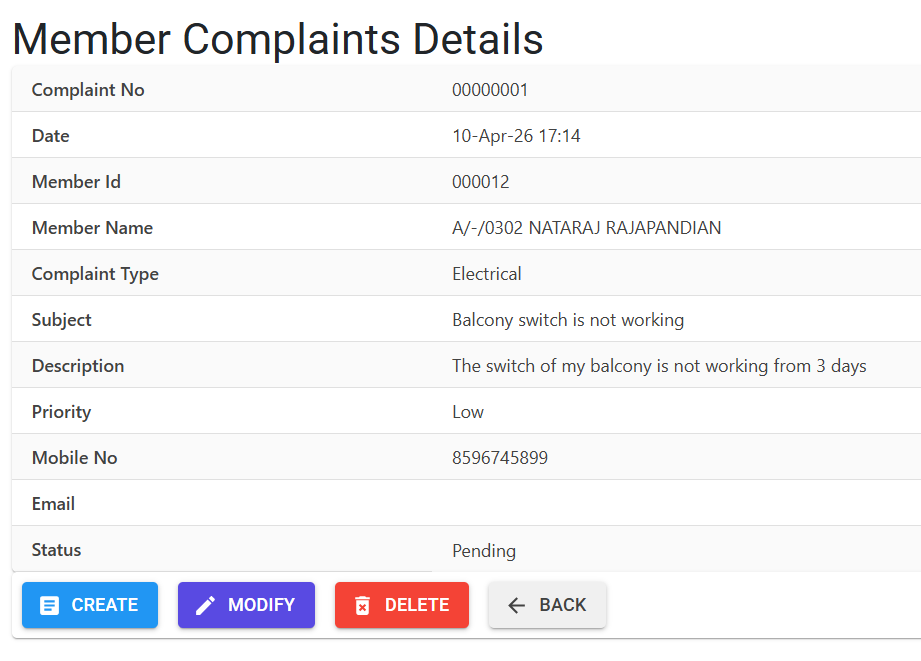
Complaint Details View
The Details View centralizes all metadata for a specific issue, allowing for precise tracking and communication.
- Update Lifecycle: Modify status or priority as the resolution progresses.
- Communication Hub: View the member’s contact details and access “Modify” or “Delete” actions based on role permissions.
5. Complete Flow 🔄
Register Complaint
- Select the Member (searchable by Name or Flat).
- Pick the Complaint Type.
- Enter a concise Subject and detailed Description.
Assign Priority
- Categorize as High, Medium, or Low.
- High-priority items are historically those involving safety, water, or major financial discrepancies.
Track Execution
- As the society staff or vendor starts work, modify the record to set the status to In Progress.
Mark Completion
- Change status to Completed.
- Enter any completion notes. The system will prompt you for the “Completed On” date.
Member Notification
- From the Details page, click the Email button.
- The system pulls the member’s email and sends a polite confirmation that their issue has been resolved.
6. Validations and Error Handling ⚠️
| Validation Type | What is checked? | Error Message / Action |
|---|---|---|
| Status Lock | If trying to delete a “Completed” or “Dropped” ticket. | “Records cannot be deleted because they are in Completed or Dropped status.” |
| Email Check | If trying to notify a member who doesn’t have an email in the system. | “Please specify a valid email address for the member.” |
| Mandatory Fields | Missing Subject or Complaint Type. | Red validation text appears next to the field. |
| Audit Role | If the user doesn’t have “Delete” permissions. | Redirects to “Access Denied” page. |
7. Tools / Smart Features 🔧
- 🏠 Member Search: Intelligent search allows finding members by partial name, building name, or flat number.
- 📊 Excel Reporting: Generate a CSV of all complaints to analyze average resolution time and identifying “Problem Members” or “Problem Areas”.
- 🔗 History Tracker: View all past complaints from a specific member directly from their profile.
8. Reports Related to Complaints 📊
- 📄 Complaint Summary Register: A list of all complaints with their current aging.
- 📋 Category Analysis: A report showing which areas (e.g., Plumbing, Security) generate the most complaints.
- 📉 SLA Report: Tracks the time taken between “Dated” and “Completed On” for each ticket.
9. Best Practices / Tips 💡
- Standardize Types: Don’t create too many categories. Keep them broad (e.g., Plumbing vs. “Kitchen Tap Leak”) for better reporting.
- Immediate Updates: Train staff to update statuses to “In Progress” as soon as they assign a vendor. This gives members confidence when they check their status.
- Detailed Notes: Use the description to note which vendor was assigned or what specific part was replaced.
- Email Always: Even if you informed the member verbally, send the system email to maintain a formal digital record.
10. Additional Observations 🔍
- Dropped Status: Use “Dropped” for duplicate complaints or those that are outside the society’s scope of work. Do not delete them.
- Contact Data: If the email button is disabled, update the member’s profile in the Member Master first.
- Bulk Analysis: Use the Excel export monthly to present “Work Done” reports to the Managing Committee.