Daily Activity
Daily Activity Module - User Guide
📈 Business Impact
The Daily Activity module ensures financial accountability and operational visibility. By requiring daily reporting, societies can eliminate cash reconciliation errors by 90% and keep the Managing Committee updated on site-office performance without requiring manual follow-ups or physical visits.
⚡ Quick Start: 2-Minute Fast Track
For society managers or accountants at the end of their shift:
- Financials: Click Create New, select your Shift, and enter Cash/Cheque Collection totals.
- Operations: Record any Petty Cash Expenses made during the day.
- Notes: Use the Any Other Work section to log non-financial tasks completed.
- Email: Save the record and click Email to instantly send the summary report to the society’s treasurer or secretary.
🗺️ Reporting Workflow
graph LR
    Shift[Staff Shift Starts] --> Collection[Collect Maintenance Dues]
    Collection --> Expenses[Pary Petty Cash Expenses]
    Expenses --> DayEnd[Create Daily Activity Record]
    DayEnd --> Save[Reconcile Cash-in-Hand]
    Save --> Email[Broadcast Report to Management]

    style Email fill:#f9f,stroke:#333,stroke-width:2px
✅ Prerequisites Checklist
Before using the daily activity reporter, ensure:
- Staff Users: All office staff have unique login credentials.
- Shift Master: Working shifts (Morning/Evening) are defined.
- Recipient Emails: Treasurer/Secretary email addresses are updated in the Activity settings.
1. Introduction 📝
The Daily Activity module acts as a “Daily Handover Report” for society office operations. It is designed to track how much money was collected, how much was spent on minor repairs, and what general tasks were accomplished.
Core Functionality:
- It handles Cash Reconciliation, tracking “Cash in Hand” and “Petty Cash Balance” daily.
- It facilitates Operational Transparency, allowing staff to report on non-financial activities (like supervising a plumber or meeting a vendor).
- It includes Automated Reporting, sending a professional digest of the day’s work to the committee.
2. Managing Daily Activities 🚀
Accessing the Module
Navigate to System Tools > Daily Activity.
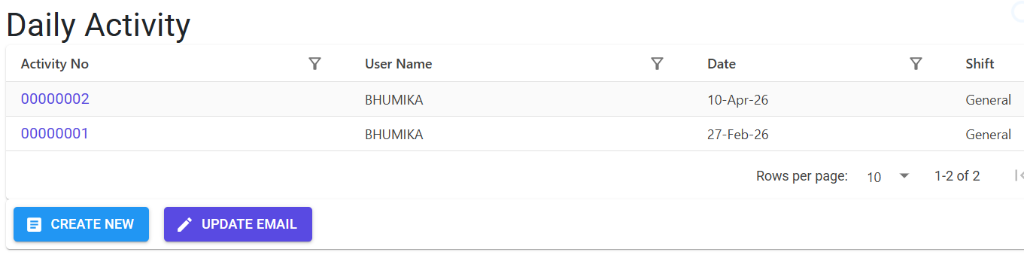
- Daily Activity Index: A list of reports submitted by different staff members.
- Update Email: Configure who receives the automated daily digest.
The Index Page
The Index Page shows the reporting history. You can:
- Search by User: Track the performance and consistency of specific staff members.
- Filter by Date: Quickly retrieve the financial summary for a specific day.
- Verify Submission: Ensure that reports are being submitted regularly as per society policy.
3. Features ✨
Daily Activity reporting is essential for small to large societies to maintain fiscal discipline:
- 💰 Collection Tracking: Separate fields for Cash and Cheque collections.
- 🏦 Bank Deposit Log: Record exactly how much cash was deposited into the society’s bank account.
- 💵 Cheque Return Tracker: Instantly log details of any dishonored cheques for immediate action.
- 📉 Petty Cash Management: Track minor out-of-pocket expenses (e.g., stationary, tea, minor repairs).
- 📝 General Workspace Notes: A dedicated “Any Other Work” section for logging qualitative updates.
- 📧 Automated Email Digest: Attach the reconciled report as a professional PDF/Excel and email it to the committee in one click.
- 🔒 Ownership Security: Users can only modify their own reports for the current date, preventing historical tampering.
4. Interface Walkthrough 🔄
Daily Activity Index
The Index Page acts as a chronological log of all society operations. It allows the committee to monitor staff consistency and verify daily reporting status.
- Audit Trail: View every report submitted by user, date, and shift.
- Configuration Hub: Access the “Update Email” tool to manage the recipient list for automated digests.
Daily Activity Details View
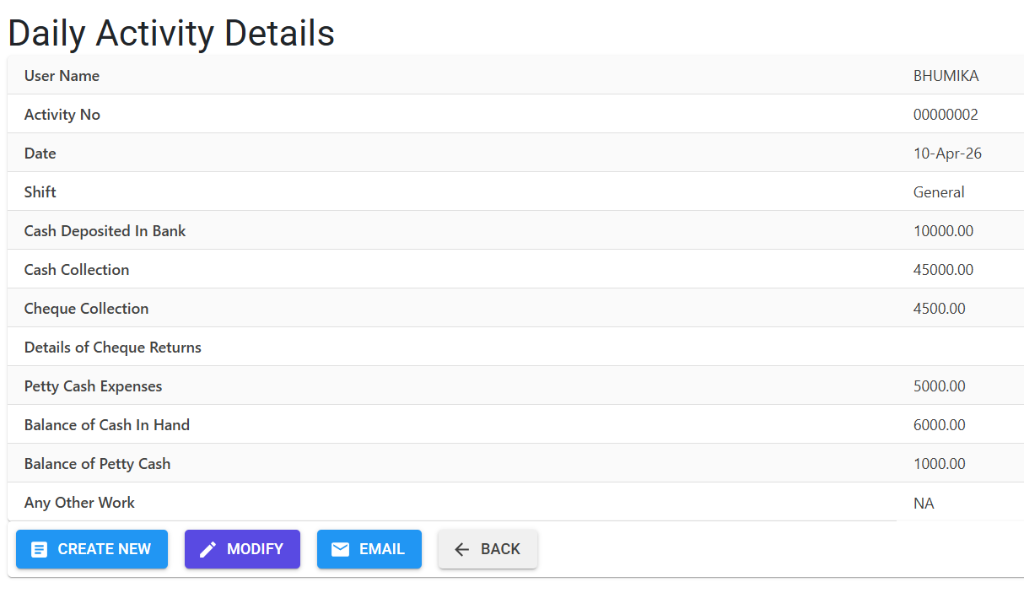
The Details View is the comprehensive handover sheet for a single shift. It reconciles financial collections with operational tasks.
- Financial Reconciliation: Track cash in hand, bank deposits, and petty cash balances in one view.
- Official Communication: Finalize the report and use the “Email” button to broadcast the daily summary to the committee.
5. Complete Flow 🔄
Select Shift and User
- The system automatically picks your User Name and the Current Date.
- Select the relevant Shift (if applicable).
Enter Collections
- Input total Cash Collection and Cheque Collection for the day.
- Record any Cash Deposited in Bank (matching your bank payslips).
Reconcile Petty Cash
- Record Petty Cash Expenses made during the day.
- The system helps track the Balance of Petty Cash for handover.
Detailed Notes
- In the Any Other Work section, log happenings like “New Member visited for NOC” or “Supervised water tank cleaning”.
Submit and Email
- Click Save.
- From the Details page, click Email.
- The committee receives a system-generated email with the activity breakdown.
6. Validations and Error Handling ⚠️
| Validation Type | What is checked? | Error Message / Action |
|---|---|---|
| Modification Lock | If trying to edit a past date or another user’s report. | “You can only modify data created by you for the current date.” |
| Recipient Check | If no email addresses are configured for reporting. | “Please specify Email Id of Recipient(s)” |
| Mandatory Status | Ensuring shift and collection amounts are valid. | Field-level validation prevents saving. |
| Role-based Access | Controls who can view other users’ reports. | Managed via “DailyActivityDetails” role. |
7. Tools / Smart Features 🔧
- 🏠 Email Configurator: Use the Update Email tool to add multiple recipients (e.g., Secretary + Treasurer + Chairman).
- 📊 Auto-Doc Numbering: Every activity report is given a unique Activity No for clear referencing in audit queries.
- 🔗 Connected Vouchers: Cross-reference these totals with specific Receipt Vouchers created during the day.
8. Reports Related to Daily Activity 📊
- 📄 Daily Activity Summary (PDF): The standard report sent via email.
- 📋 Staff Performance Report: Shows who has been consistent with reporting vs. who has missed days.
- 📈 Collection Trend: Analyzes cash vs. cheque collection trends over a month.
9. Best Practices / Tips 💡
- Report Daily: Submit reports before leaving the office. This ensures maximum accuracy while details are still fresh.
- Match Payslips: The “Cash Deposited” amount should always match your physical bank payslip.
- Be Specific in Notes: Instead of “General work”, write “Resolved elevator complaint in Wing B”. This proves staff productivity.
- Configure Multiple Emails: Always send the report to at least two committee members to ensure redundancy.
10. Additional Observations 🔍
- Historical Edits: The system purposely prevents editing past activities to ensure these reports can be used as “Evidence” during audits.
- Zero Collection: Even if no money was collected, submit a report with 0 values to show that the office was operational and other work was done.
- Cheque Returns: Use the comments section in the cheque return field to note the Member Name and Reason (e.g., Funds Insufficient).